Forgotten password
-
On the Sign in page, select Forgot your password?.
-
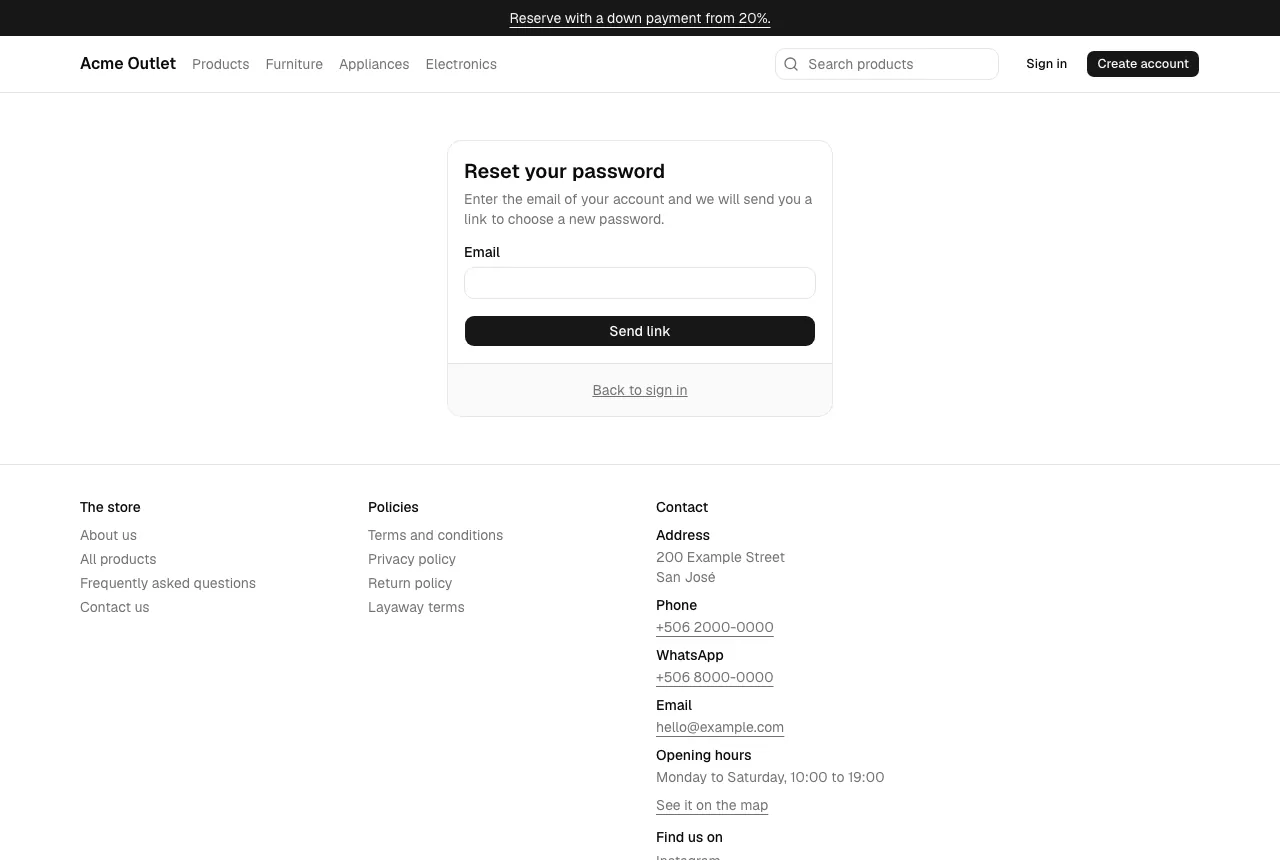
Enter the email of your account and select Send link.
The page always answers “If an account exists for that email, a link to reset your password is on its way. The link is valid for one hour.”, so it never reveals whether an email has an account.
-
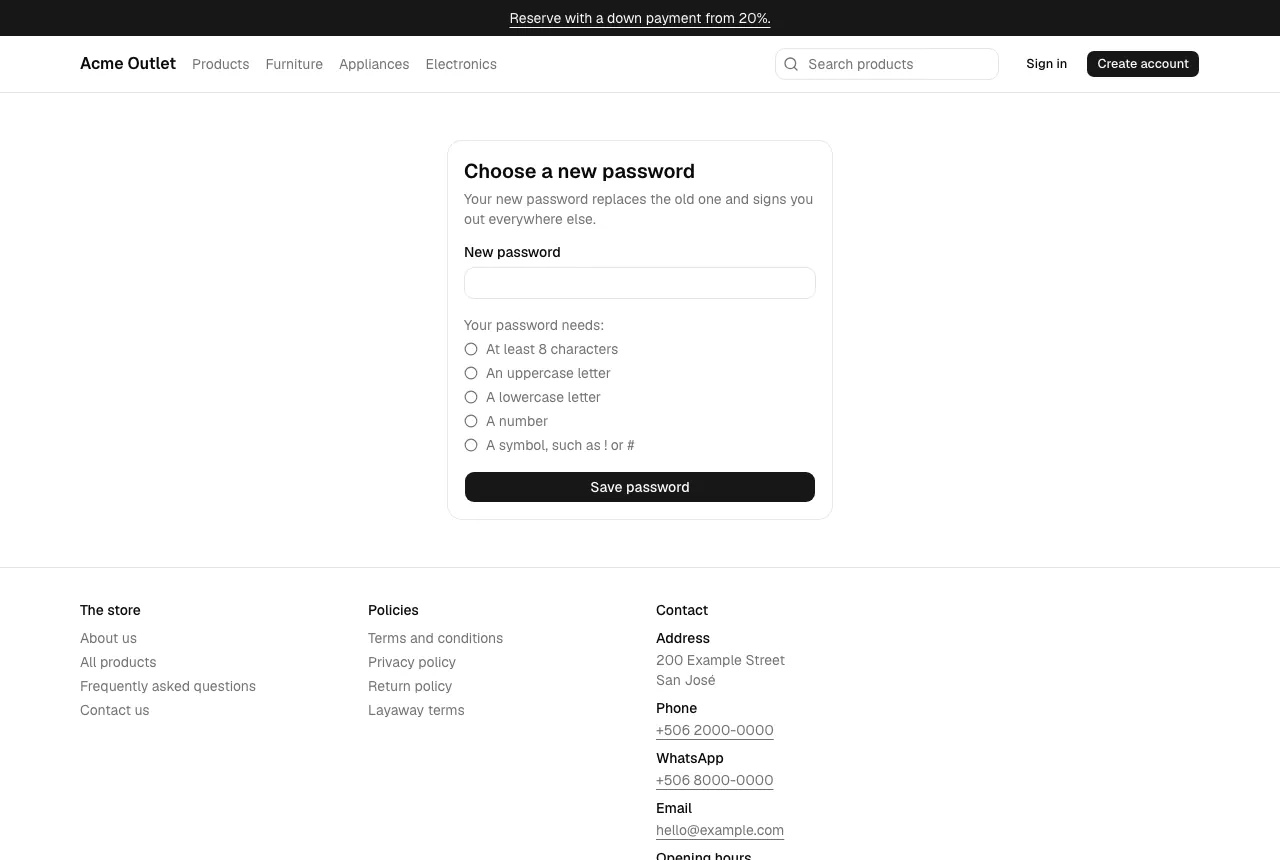
Open the link in the email. It takes you to Choose a new password in the same store.
-
Enter a New password that meets every requirement in the list and select Save password.
-
When you see “Your password has been changed. You can now sign in with it.”, select Sign in.
The new password replaces the old one and signs you out everywhere else.
If the link was already used or more than an hour has passed, you see “This link is invalid or has expired.” Select Request a new link to start again.
Set a password after an email link
Section titled “Set a password after an email link”If signing in with an email link removed your password (see Sign in with an email link), My account shows “Your account has no password” with a Set a password button.
- Select Set a password, or open Settings and go to Password.
- Enter a New password that meets every requirement in the list and select Set password. There is no current password to type.
- When you see “Your password is set. You can now sign in with it.”, you can sign in with it again.
This works only if you signed in with an email link in the last 24 hours. Otherwise the page says “For your security, sign in again with an email link before setting a password.”; get a new link and try again. Until you set a password, keep signing in with an email link. Once set, Password is the usual Change password form again.