Platform sign-in and dashboard
The platform panel is for the people who run the service as a whole: they create stores, look after their domains and decide who else can do the same. It lives on its own address, separate from every store, and has its own accounts: a store account can’t sign in to it.
Signing in
Section titled “Signing in”Open the platform address and sign in with your email and password on Platform sign-in (“For platform administrators only.”). There is no sign-up: platform admins are invited by other platform admins (see Platform admins).
After the password, the panel emails you a 6-digit code and shows Enter your sign-in code. Type it and select Verify. The code works once, for 5 minutes, with 5 tries, and the password step is good for 10 minutes. If it doesn’t arrive, select Send a new code: only the newest code works. Select Start over to return to the email and password. Tick Trust this device for 30 days to skip the code on this browser for 30 days; setting a new password from a reset or invitation link, or changing it, makes every browser ask for a code again. Codes are written in the platform’s name, not a store’s. See The sign-in code for the messages you may see.
If you forgot your password, select Forgot your password?, enter your email and select Send link. The link in the email is valid for one hour.
To leave, select Sign out in the menu.
The menu
Section titled “The menu”The menu has Dashboard, Stores, Analytics, Platform admins, the language buttons, the Theme button and Sign out.
Language
Section titled “Language”The panel opens in your browser’s language, English or Spanish. Select English or Español in the menu (on the sign-in page, under the form) to change it; the panel remembers your choice on this browser.
The Theme button in the menu offers System (the default: the panel is light or dark like your device), Light and Dark. The choice is kept on the device you use. It changes only the platform panel.
Dashboard
Section titled “Dashboard”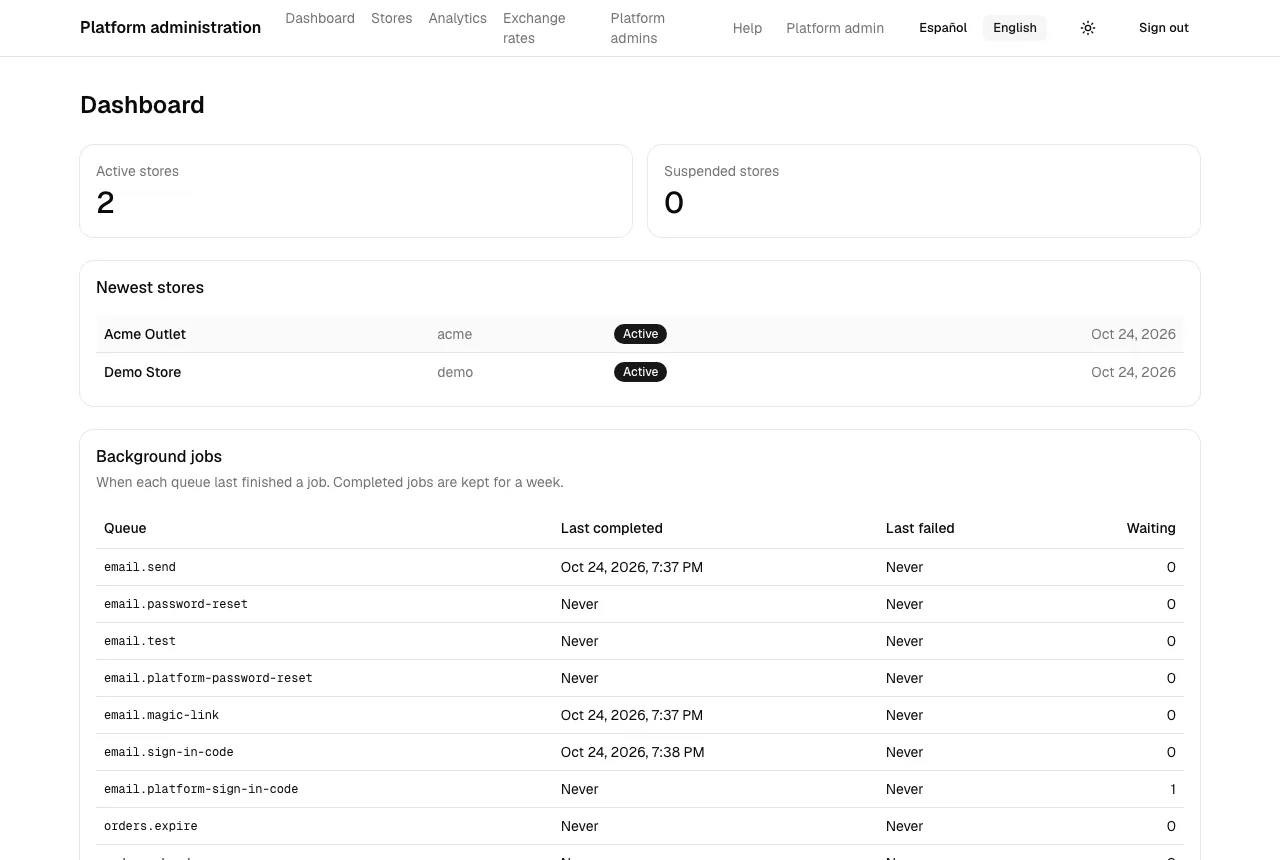
- Active stores and Suspended stores: how many stores are in each state.
- Newest stores: the latest stores, with their subdomain, status and creation date. Select a name to open the store.
- Background jobs: “When each queue last finished a job. Completed jobs are kept for a week.” For each Queue it shows Last completed, Last failed (or Never) and how many jobs are Waiting. A queue with a recent failure or a growing number waiting is the first place to look when emails or domain setup seem stuck.
For figures across stores, see Platform analytics.