Orders
Orders lists every layaway and full purchase in the store.
The list
Section titled “The list”Each row shows the Code, Customer, Product, Type (Layaway or Full payment), Status, Total, Paid, Remaining, Created and Expires. An order that hasn’t received its first payment has no code yet: it shows “No code yet”.
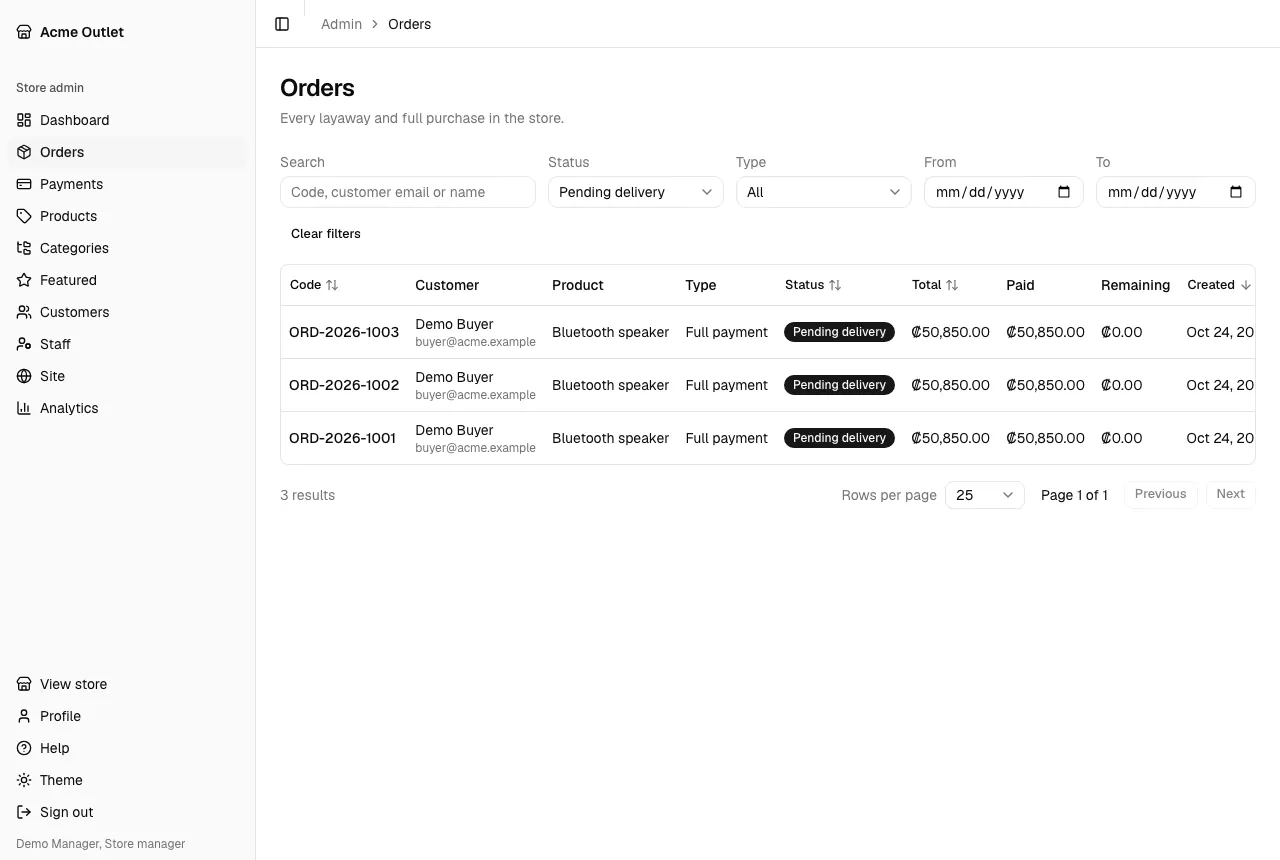
Narrow the list with the filters above it:
- Status: Not started, Ongoing, In review, Pending delivery, Delivered, Cancelled or Expired.
- Type.
- From and To: the dates the order was created.
- Search: a code, or a customer’s email or name.
Clear filters starts again. Select a column title to sort by it, and use Rows per page and Previous / Next to move through the results. The filters, sort and page are part of the page address, so you can bookmark or share a view. The dashboard’s cards link to filtered lists too.
An order’s page
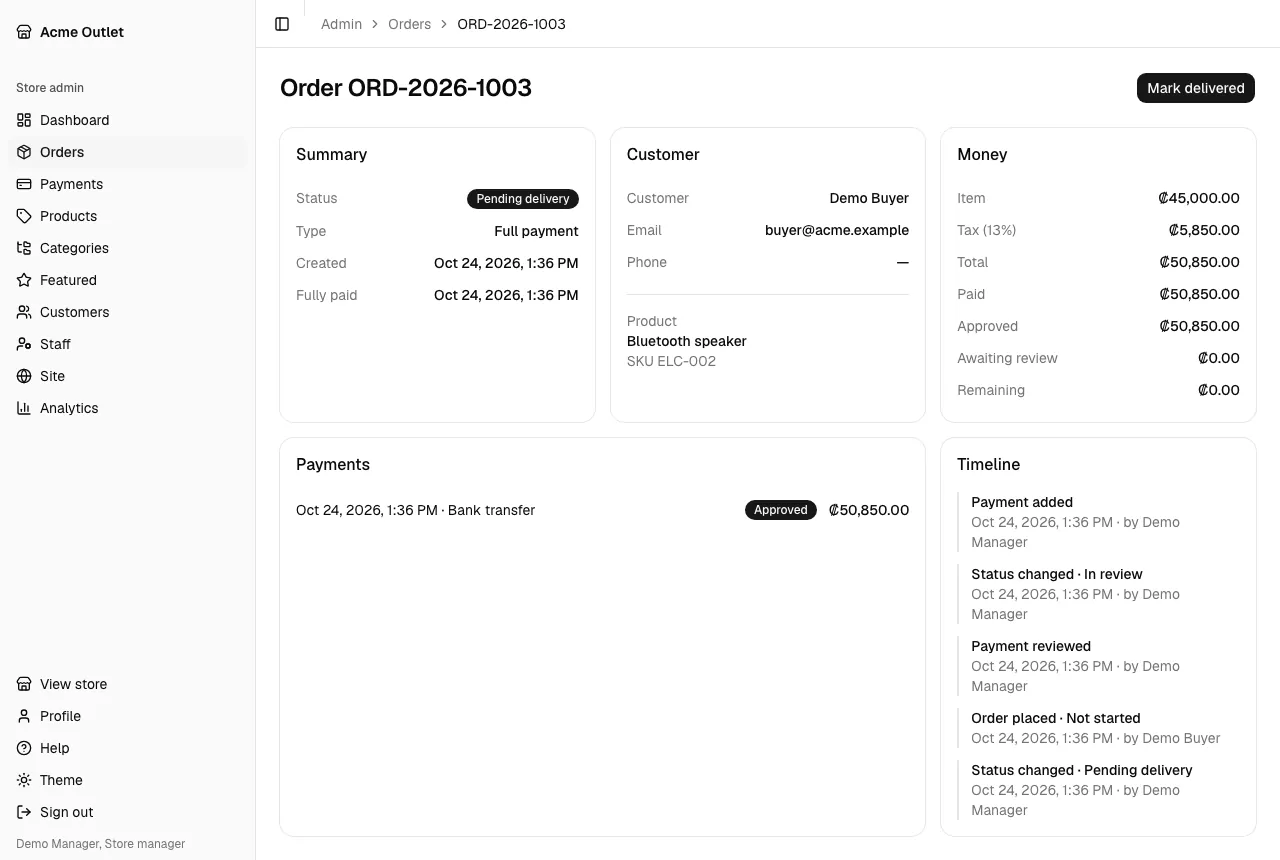
Section titled “An order’s page”Select an order’s code to open it. The page shows:
- Summary: the status, the type, when it was created, the Expires deadline of a layaway, and the dates it was fully paid, delivered, cancelled or expired.
- Customer: name, Email, Phone and ID number (the ID number is hidden from warehouse staff), and the Product with its SKU.
- Money: the Item price, the Tax, the Total, what was Paid, how much of it is Approved and how much is Awaiting review, the Remaining amount and, for a layaway, its down payment percentage.
- Payments of the order.
- Timeline: every event on the order, with who did it (“by …”) or “System” for automatic steps such as an expiry.
Actions
Section titled “Actions”The buttons at the top right depend on your role and on the order’s status. See Roles and permissions.
- Mark delivered: only for an order that is Pending delivery. Confirm “Mark this order delivered?” once the customer has the product: it can’t be undone, and the order becomes Delivered.
- Cancel order: for an order that still takes payments (Not started or Ongoing), with a Reason. The product returns to stock and the customer is emailed. An order with approved payments can’t be cancelled until those payments are refunded.
- Reopen layaway: store admins only, for a layaway that is Expired. Choose a New deadline and a Reason. The layaway becomes Ongoing again until that deadline and its unit is reserved again.
- Record bank transfer: for an order that still takes payments. Enter the Amount of a transfer the customer made. It joins the review queue like any transfer, to be approved or rejected in Payments.
Type amounts the way the store’s country writes them, for example 1229.43 in Panama and 1229,43 in Costa Rica. Either mark is accepted.