Home page, banners, announcement and menus
Home page
Section titled “Home page”Home controls what visitors and customers see on the store’s home page: a list of sections that you add, order and show or hide.
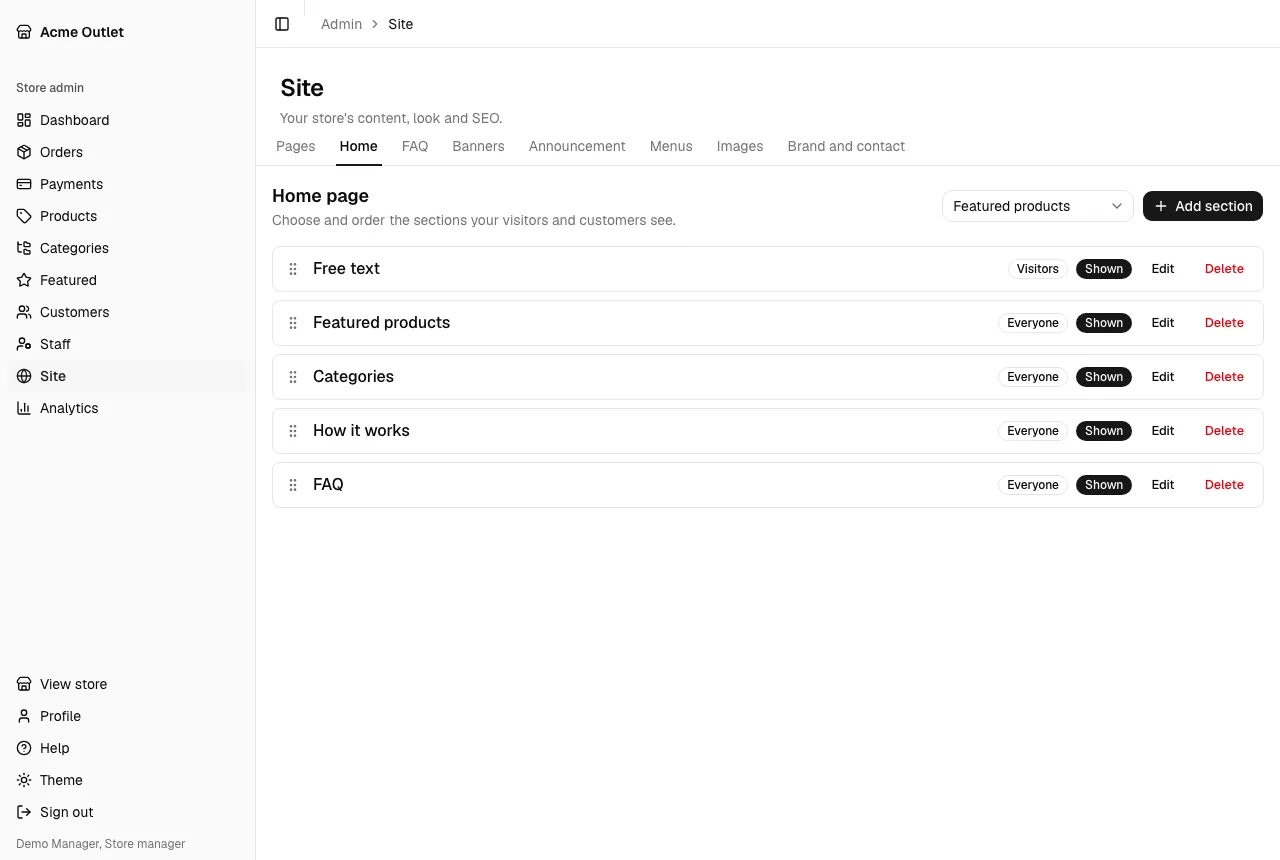
Choose a Section type and select Add section:
| Section type | What it shows |
|---|---|
| Hero banners | The banners of one placement (Home for visitors or Home for customers), managed in Banners |
| Featured products | The products in Featured, up to How many to show |
| Categories | The published main categories |
| How it works | Steps, each with a Step title and Step description |
| FAQ | The first published questions, up to How many to show |
| Free text | Text you write in the editor, in Content |
Each section has a Title (optional): without one, the store uses the section type’s own title. Who sees it sets the audience: Everyone, Visitors (not signed in) or Customers (signed in), so you can show a different home page to each. A section can be Shown or Hidden. Drag a section by its handle (Drag to reorder) to change the order; Edit and Delete change or remove it.
A section with nothing to show, such as banners with no active banner, doesn’t appear. With no sections at all, the store shows the featured products and the categories.
Banners
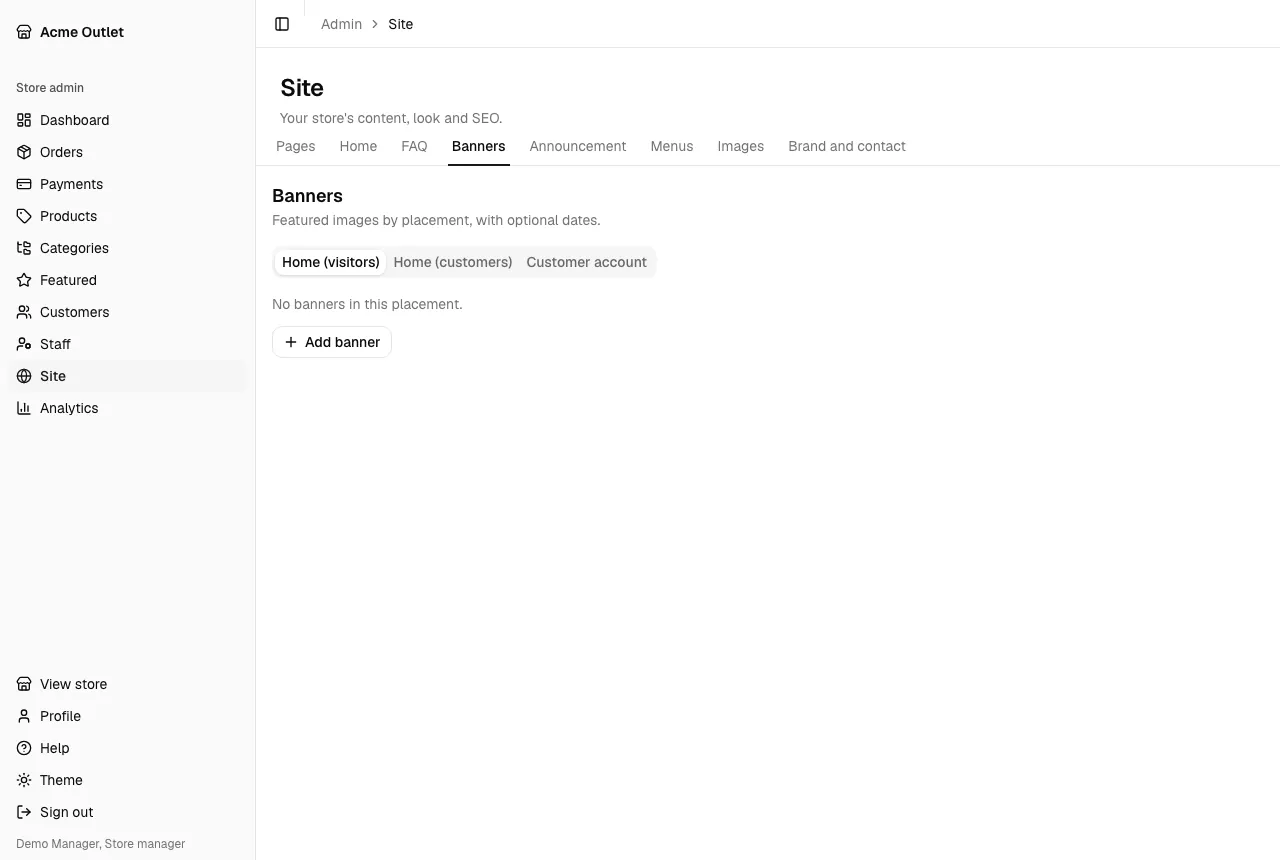
Section titled “Banners”Banners are images for the home page, grouped by placement. Add one with Add banner:
- Desktop image and, optionally, Mobile image (optional). Images can be JPG, PNG, WebP or AVIF, up to 10 MB.
- Alt text: describe the image for people who use screen readers.
- Internal title: a name for you, not shown to customers.
- Link (optional), and From (optional) and Until (optional) dates to show it only for a while.
- Published: only published banners that are within their dates are shown.
Drag banners within a placement to order them. The Home (visitors) and Home (customers) placements feed the Hero banners section. A third placement, Customer account, shows its banners at the top of a customer’s account page.
Announcement
Section titled “Announcement”Announcement is one short line shown above the store’s header on every page.
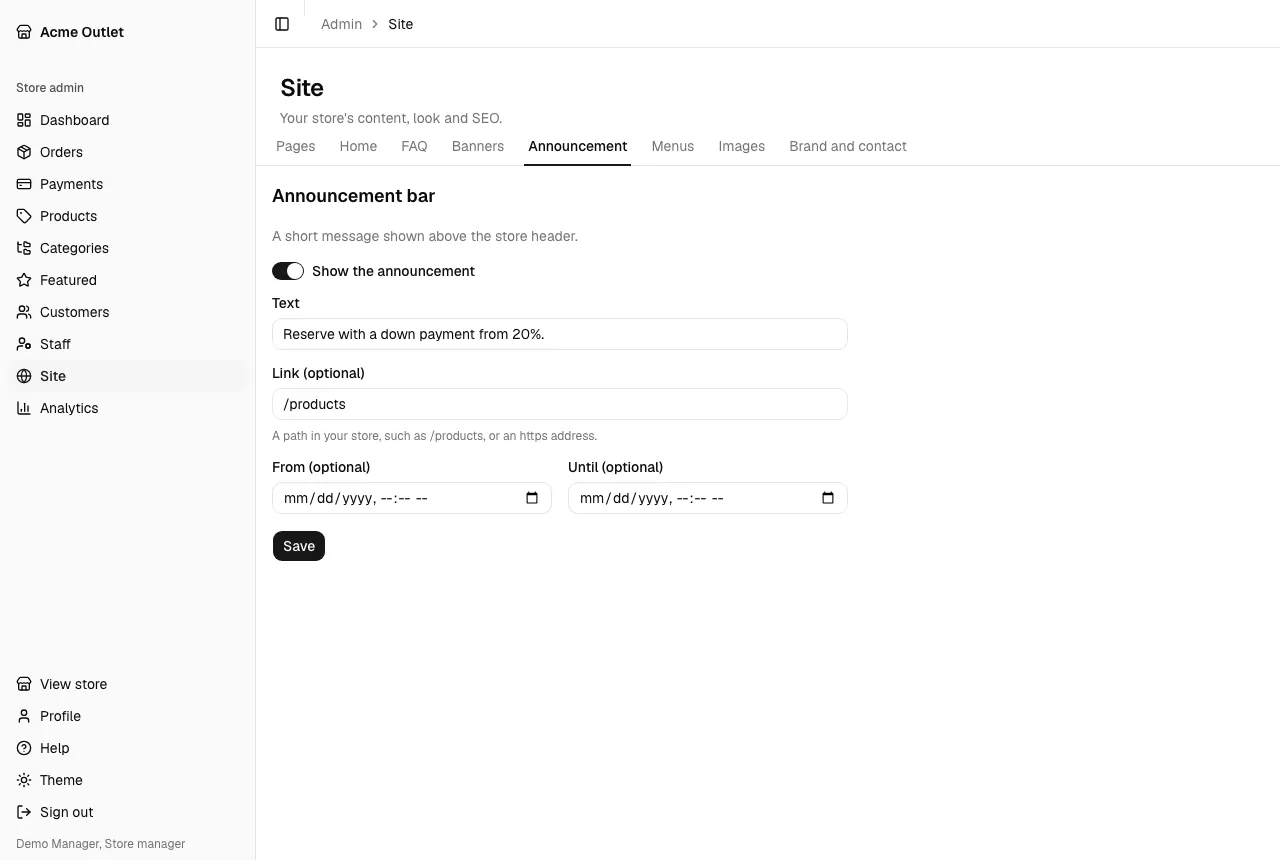
Write the Text, add a Link (optional) (a path in your store such as /products, or an https address), optionally set From (optional) and Until (optional) dates, tick Show the announcement and save.
Menus has four menus: Header, Footer: store, Footer: legal and Footer: social. Each item has a Text and a Link type: a Page, a Category, a Product or an Address. Use Add item and Add sub-item (one level of nesting), drag items to order them, Remove the ones you don’t need and select Save menu.
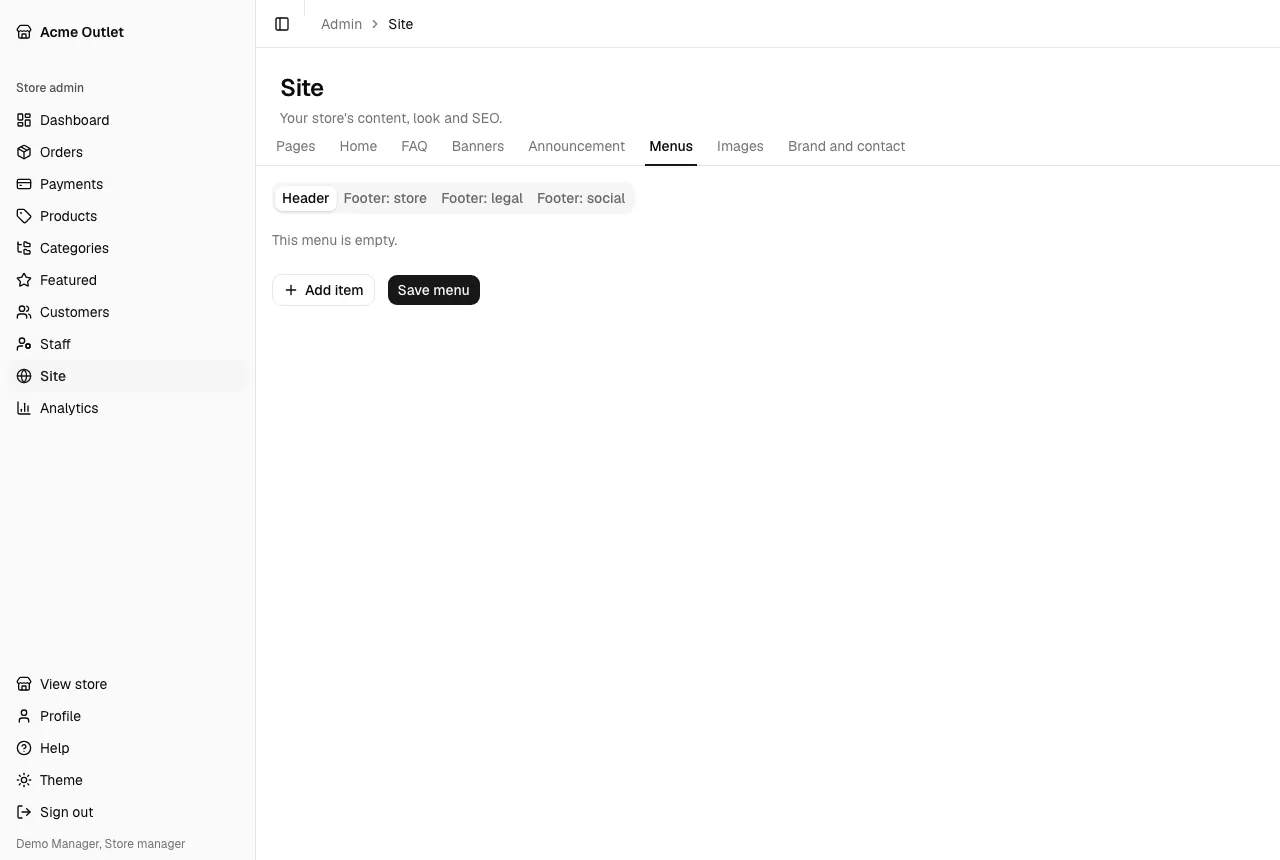
In the store, the Header menu appears at the top, with a Products link in front. If it is empty, the header lists the main categories instead. Footer: store and Footer: social appear in the footer. The footer’s legal column lists the published legal pages by itself, and then the items of Footer: legal, for links of your own. An item that points to something unpublished or deleted is left out.