Platform analytics
Analytics shows how the platform as a whole is doing. It has five reports, Overview, Stores, Payments health, Platform health and Growth, and is open to every platform admin. It holds figures only: no customer, order or payment is ever shown here. A store’s own staff see their store’s reports in Analytics.
The controls
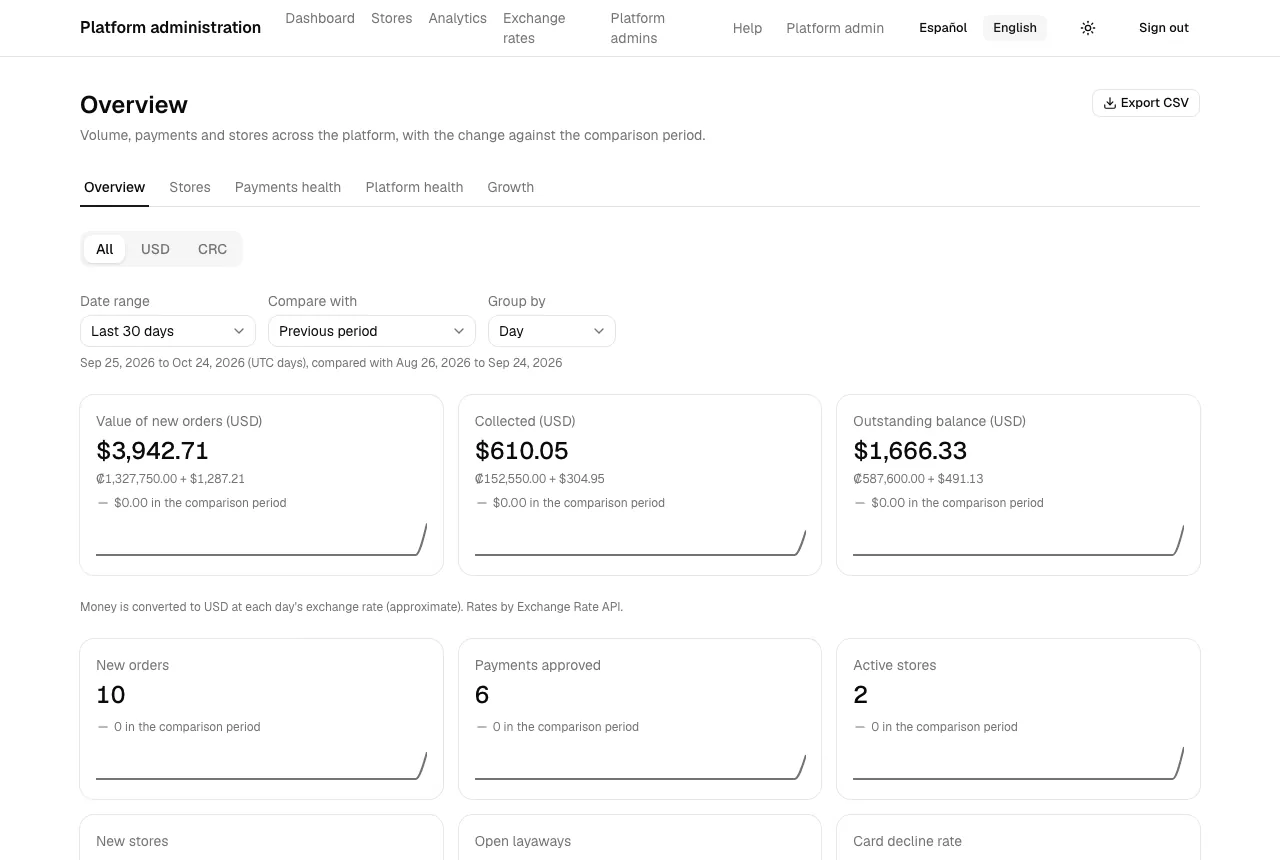
Section titled “The controls”Overview, Stores and Payments health share the controls at the top, kept in the page address so a link shows the same view.
- Date range: Today, Last 7 days, Last 30 days, This month, Last month, This year or Custom (From and To). Days are UTC days, because stores keep different time zones; a line under the controls spells out the exact days.
- Compare with: Previous period or Same days last year.
- Group by (Overview only): Day, Week or Month.
- Currency (Overview, Stores and Payments health): tabs, All first, then one per currency your stores sell in. See Currency tabs.
Platform health describes the platform right now, so it has no controls.
Overview
Section titled “Overview”“Volume, payments and stores across the platform, with the change against the comparison period.” On All, money from every currency is converted to US dollars and added up; on a currency tab you see only that currency’s stores. Three cards:
- Value of new orders (…): the total of the orders created in the period.
- Collected (…): approved payments in the period, minus refunds.
- Outstanding balance (…): what open layaways still owe at the end of the period.
Then the counts, which add up every store on All and only that currency’s stores on a currency tab:
- New orders and Payments approved.
- Active stores: stores with an order in the 30 days up to the end of the period.
- New stores: stores created in the period.
- Open layaways: layaways still being paid at the end of the period.
- Card decline rate: declined card payments out of approved plus declined.
Each card shows how it changed against the comparison period and a small trend line. Below, a chart compares Value of new orders and money collected. If nothing happened you see “No store activity in this period.”
Currency tabs
Section titled “Currency tabs”The tab you pick stays in the address and in every link and Export CSV of the report.
- All (the default): every store. Money is converted to US dollars day by day, each day at that day’s exchange rate, and added up. Under a converted card, a small line shows the original amounts, such as “₡1,175,000.00 + $1,452.00”. Counts, such as orders and active stores, are for the whole platform and are shown once.
- A currency (for example USD or CRC): only the stores that sell in that currency, for every figure. Money is in that currency, with its US dollar equivalent in parentheses, such as “₡1 175 000,00 ($2,350.00)”, also in the comparison and in the chart. The USD tab shows plain dollars. Counts are for that currency’s stores only.
Converted figures are approximate, and the page says so:
- “Money is converted to … at each day’s exchange rate (approximate). Rates by Exchange Rate API.” The credit is required by the rates provider.
- “Some days use an earlier day’s rate, because that day’s could not be fetched.” The figures are still close; the rate is fetched again the next day. You can also set it yourself in Exchange rates.
- “Approximate: some days use the earliest available rate.” The range goes back before the first stored rate.
- “Conversion isn’t available: no exchange rate has been stored yet. The amounts in each currency are shown instead.” There is no rate at all yet, so no total is shown rather than a wrong one.
Stores
Section titled “Stores”“Each store’s volume, open layaways and onboarding. Figures only: no customer or order data.”
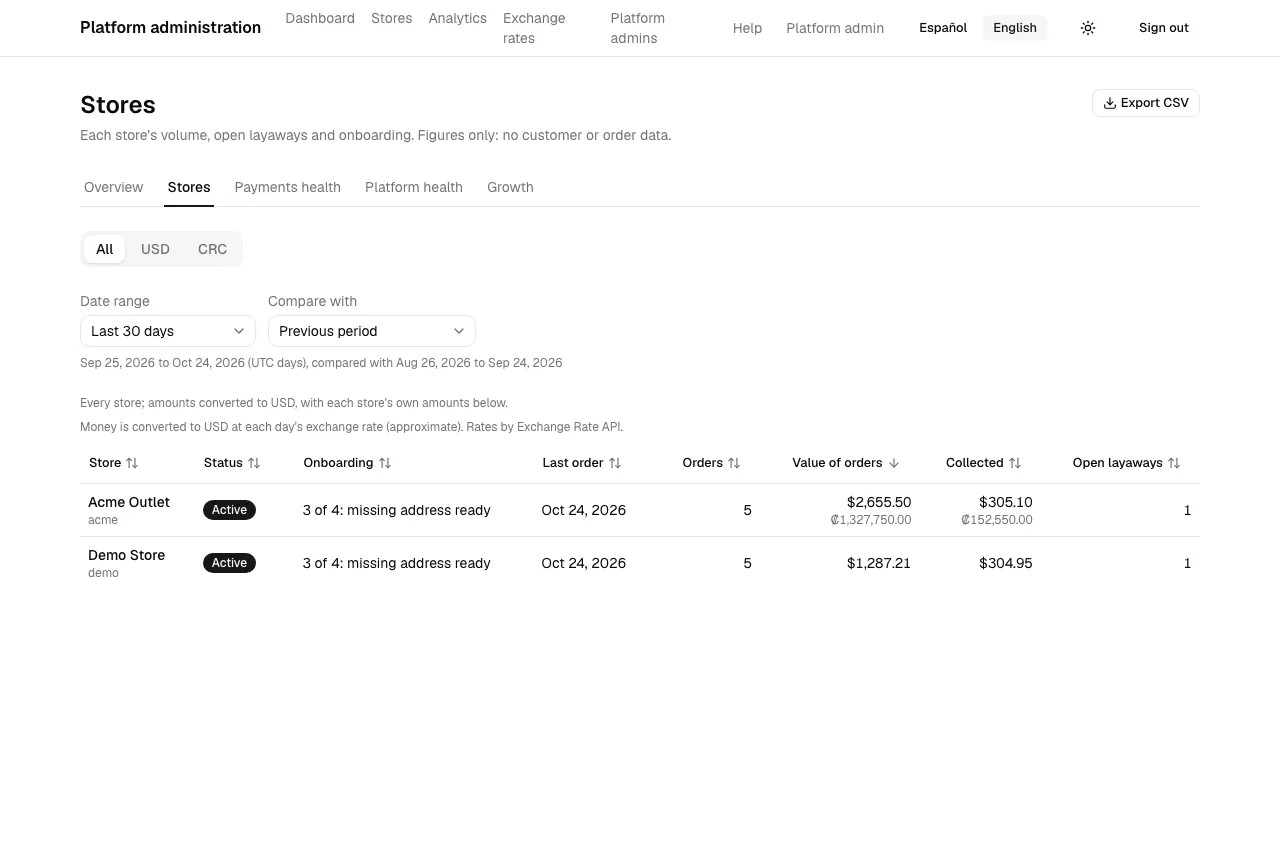
One row per store, suspended ones included:
- Store: the name, linking to the store’s page in the panel (see Stores and domains).
- Status: Active or Suspended.
- Onboarding: Complete, or how far along it is, such as “3 of 4: missing first order”. The four steps are address ready, card payment credentials, first product and first order. This is the quickest way to see which new stores need a hand.
- Last order: the date of its latest order, or “No orders yet”.
- Orders, Value of orders, Collected and Open layaways. The money follows the Currency tab: on All, every store in US dollars; on a currency tab, only that currency’s stores.
Select a column heading to sort by it; select it again to reverse. The table starts sorted by Value of orders, highest first.
Payments health
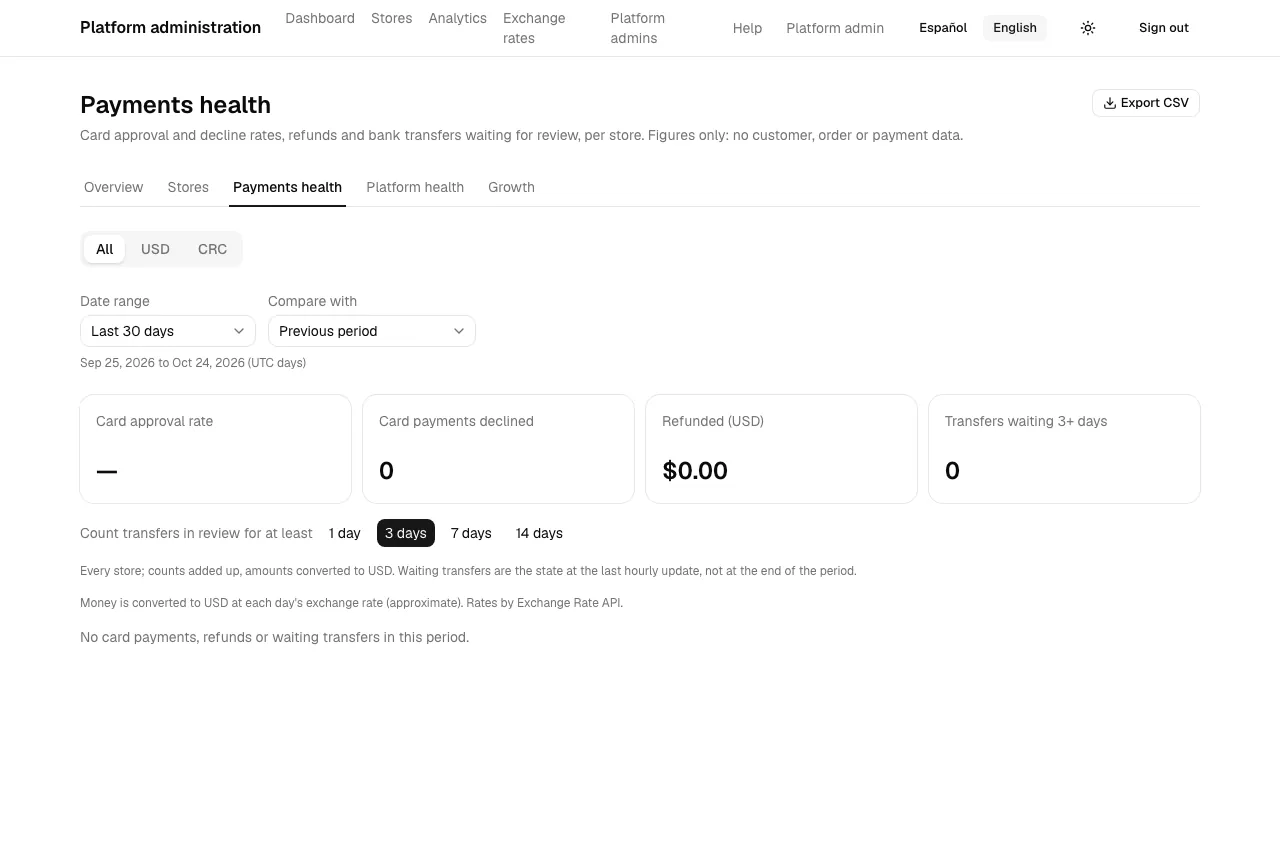
Section titled “Payments health”“Card approval and decline rates, refunds and bank transfers waiting for review, per store. Figures only: no customer, order or payment data.” Pick a Currency tab; a store appears when it has activity in that currency, and All shows every store in US dollars. Four cards give the totals: Card approval rate, Card payments declined, Refunded (…) and Transfers waiting … days.
Under Count transfers in review for at least, choose 1 day, 3 days, 7 days or 14 days: a bank transfer that has waited in review at least that long counts as waiting. The waiting figures are the state at the last hourly update, not at the end of the period.
One row per store, the lowest approval rate first so the stores in trouble come to the top: Approved, Declined, Approval rate, Refunds, Refunded, Waiting transfers and Waiting value. A refunded card payment still counts as approved. Select the store’s name to open its page.
Platform health
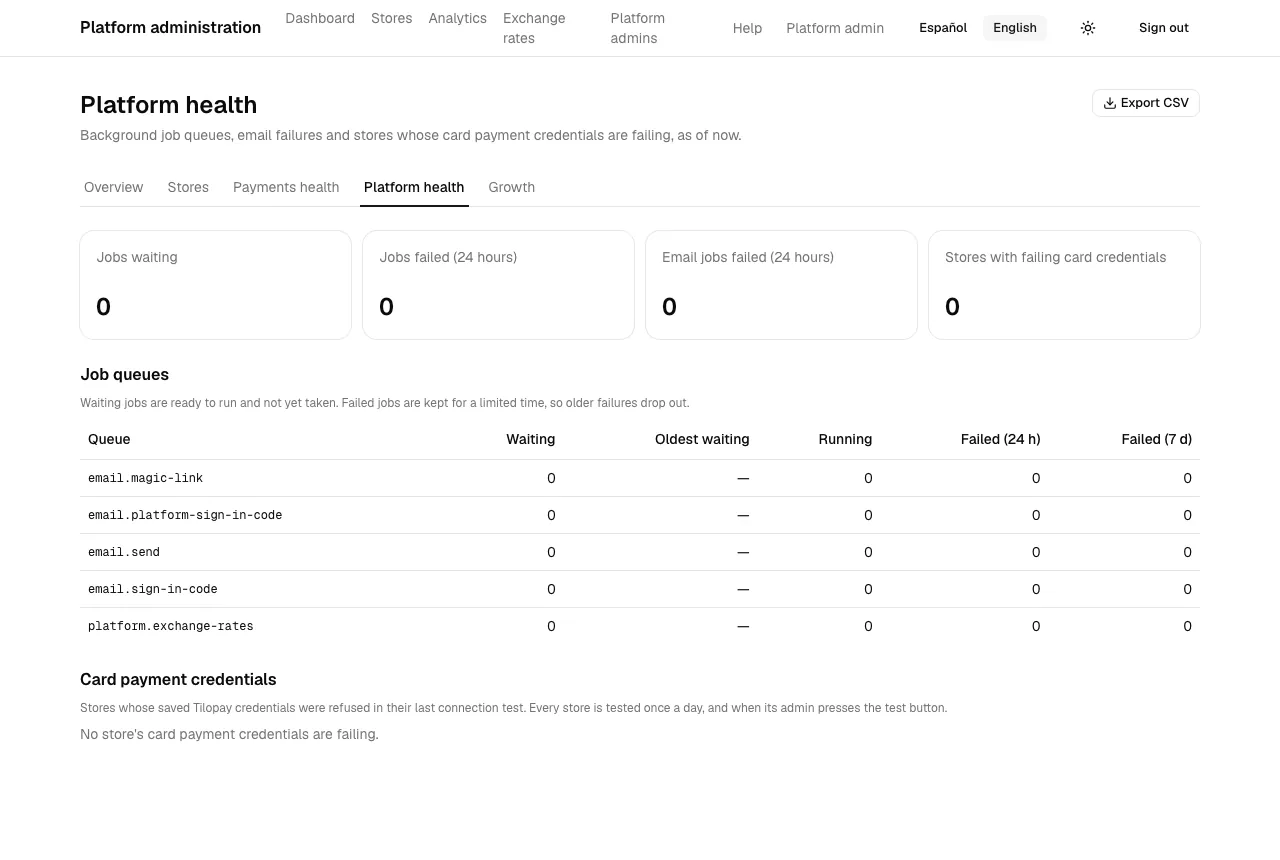
Section titled “Platform health”“Background job queues, email failures and stores whose card payment credentials are failing, as of now.” Four cards sum it up: Jobs waiting, Jobs failed (24 hours), Email jobs failed (24 hours) and Stores with failing card credentials.
- Job queues: one row per queue, such as
email.sendororders.expire, with Waiting (ready to run and not yet taken), Oldest waiting, Running, Failed (24 h) and Failed (7 d). A queue whose waiting count keeps growing, or whose oldest job is minutes old, means the worker is behind or stopped. Failed jobs are kept for a limited time, so older failures drop out. - Card payment credentials: the stores whose saved Tilopay credentials were refused in their last connection test. Every store is tested once a day, and again when its admin presses the test button in its settings. A store listed here cannot take card payments until its admin saves working credentials.
Growth
Section titled “Growth”“Stores grouped by the month they were created: who placed a first order, went live and kept ordering. Figures only.” It has no controls: it always shows the last 12 months, and the months are UTC months.
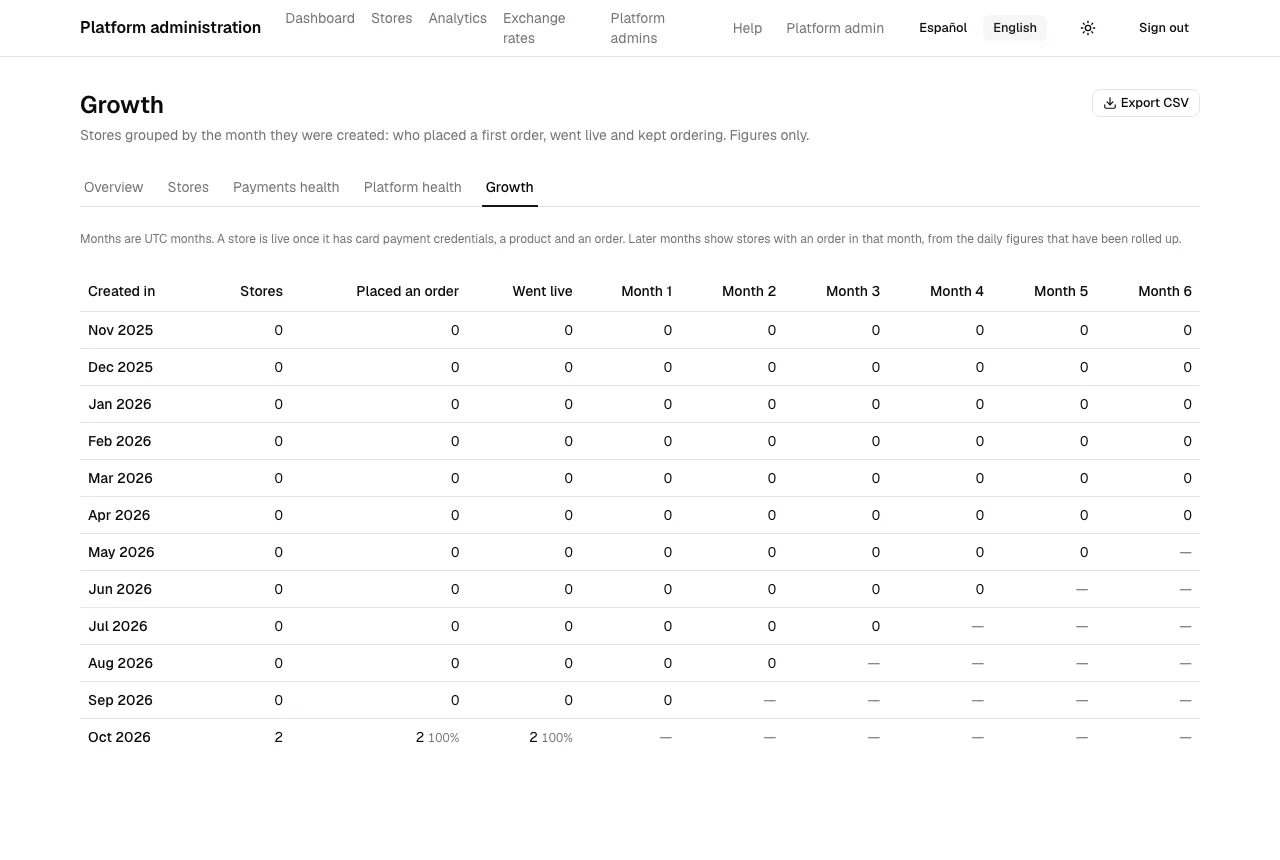
One row per Created in month:
- Stores: how many stores were created that month.
- Placed an order and Went live: how many of them have placed an order, and how many are live, meaning they have card payment credentials, a product and an order. Each shows the share of the month’s stores.
- Month 1 to Month 6: how many of the month’s stores had an order in the first, second, and so on, month after the one they were created in. A month that hasn’t happened yet shows a dash, not a zero.
Read a row from left to right to see how a group of new stores does over time. A store that is created but never reaches Went live is the one that needs a hand: find it in the Stores report, by its Onboarding column. The monthly columns come from the daily figures the platform has calculated, so months before they were calculated show no orders.
Export CSV
Section titled “Export CSV”Export CSV, at the top right of each report, downloads what is on screen for the same range, comparison, currency and sort (the Growth file has one row per month, with the counts above). The Overview file has one row per day, with the money columns for each currency, the converted US dollar columns (such as “Collected (USD), converted”), for each currency other than USD the Rate USD to … used that day and the Rate day USD to … it is for (an earlier day when that day’s could not be fetched), and the counts. The Stores and Payments health files have the money in each currency plus the converted US dollar column; on the USD tab there is no converted column. The Payments health file has the table’s rows for the waiting age you chose, and the Platform health file has the queue table and the stores with failing credentials. The Stores file has the same rows in the same order as the table, with the four onboarding steps as separate Yes or No columns.
Good to know
Section titled “Good to know”- The reports update hourly for today and yesterday, so they can be an hour behind.
- Only totals are stored for the platform, so a figure can’t be traced back to a customer or an order. To look into a store’s details, use that store’s own admin.