Payments and the review queue
Payments is for accounting staff, store managers and store admins. Card payments arrive already decided by the card processor. Bank transfers arrive Awaiting review and wait for you.
The two tabs
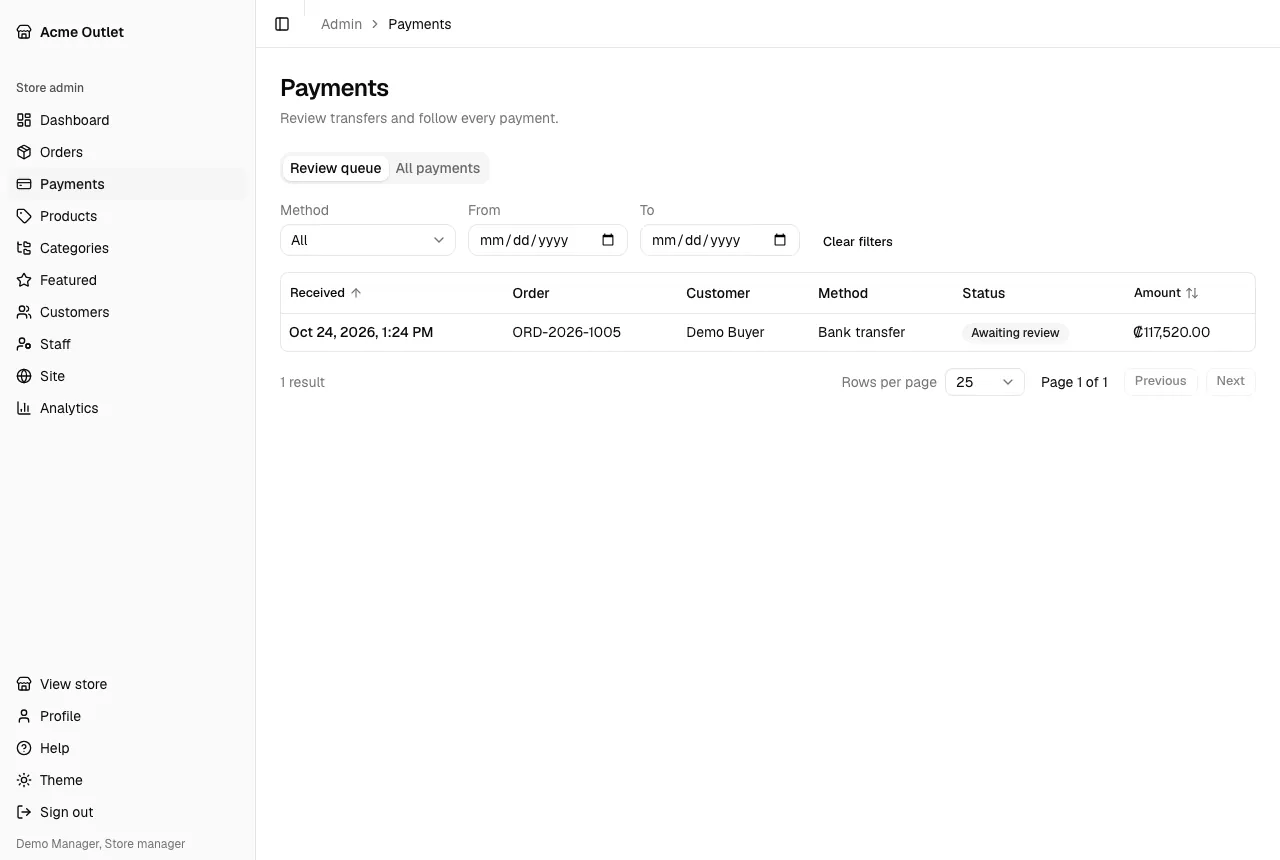
Section titled “The two tabs”- Review queue (the default) lists the payments Awaiting review, oldest first.
- All payments lists every payment. Filter it by Status (Awaiting review, Approved, Rejected, Refunded) and Method (Card, Bank transfer).
Each row shows when the payment was Received, its Order, the Customer, the Method, the Status and the Amount.
Reviewing a payment
Section titled “Reviewing a payment”Open a payment from the list. The page shows its Amount, Method, Status, whether it is the Down payment, when it was Received, and the Order and Customer it belongs to. For a card payment it shows the card brand and last digits, the Tilopay transaction and the Authorization. For a bank transfer it shows the Receipt the customer uploaded: an image appears on the page and a PDF opens with Open receipt; if the customer didn’t upload one, it says “No receipt was uploaded.”.
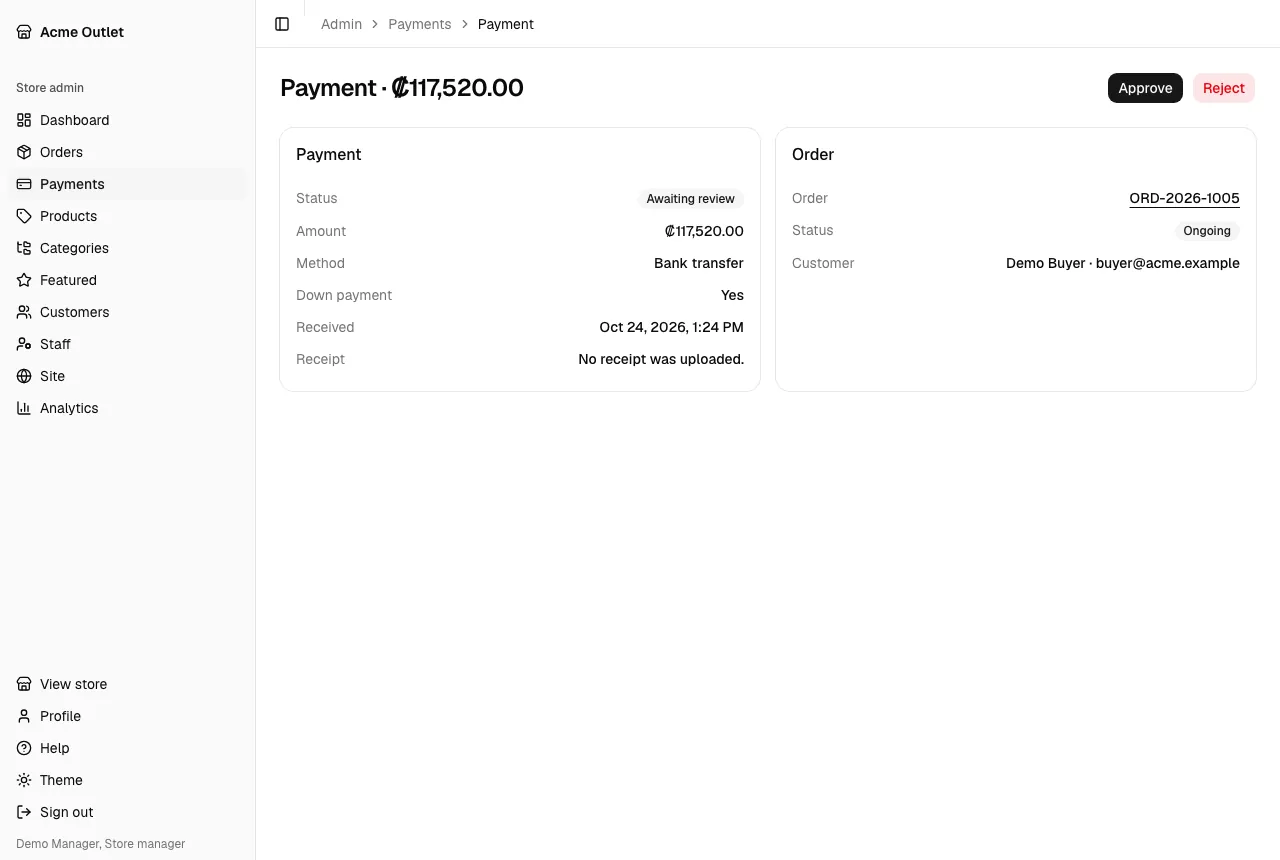
Compare the receipt with your bank, then choose:
- Approve: confirm “Approve this payment?” once the money has arrived. The payment becomes Approved, the order is updated (a layaway that is paid in full becomes Pending delivery) and the customer is emailed.
- Reject: enter a Reason and confirm. The payment becomes Rejected and the customer sees your reason in their email, so write it so they can fix the problem and send the transfer again. The reason stays on the payment page as Rejection reason.
Once a payment is reviewed, the page also shows Reviewed by and Reviewed.
Refunds
Section titled “Refunds”Refund appears on an Approved payment only when its order has ended: a layaway that Expired, or an order that was Cancelled.
- For a Card payment, confirming asks Tilopay to return the whole amount to the customer’s card. If Tilopay can’t do it, you see an error and the payment stays Approved.
- For a Bank transfer, return the money to the customer outside the platform first, then confirm to record the refund here.
A refunded payment shows Refunded and the date.
Card charges that weren’t recorded
Section titled “Card charges that weren’t recorded”The Dashboard lists card charges that Tilopay made but the store didn’t record. Those are refunded in the Tilopay portal, not here.