Pages, legal pages and FAQ
Site has one tab for each part of the store’s content: Pages, Home, FAQ, Banners, Announcement, Menus, Brand and contact and Images. It is for store managers and store admins. This page covers Pages (including the legal pages) and FAQ; the other tabs have their own pages in this manual.
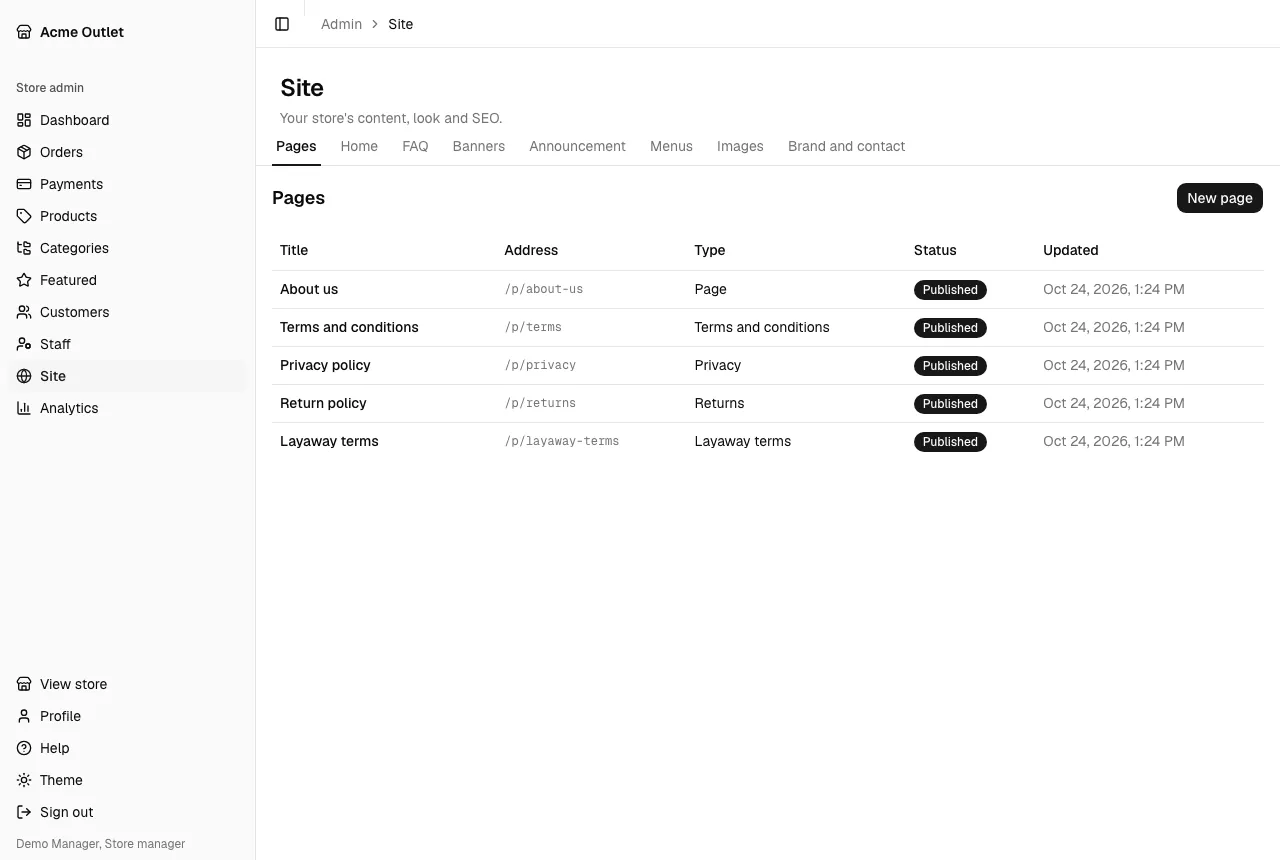
Pages lists the store’s pages with their Title, Address, Type, Status and when they were Updated. Select New page to write one: an about page, a contact page, how layaway works, anything.
A page has:
- Title and Address: the address is generated from the title unless you write one. Two pages can’t use the same address.
- Content, written in an editor with a Formatting bar: Bold, Italic, Strikethrough, Heading, Subheading, Bulleted list, Numbered list, Quote, Link, Insert image, Undo and Redo.
- SEO: a Search title and Search description for search engines, with a Search preview that shows how the page would appear, and a Sharing image used when the page’s link is shared on social networks. Without them, the page’s title and the start of its content are used, and the store’s default sharing image.
- Publishing: a new page is a draft. Publish makes it appear at its address in the store; Unpublish takes it down. View in store opens it.
- Delete: removes the page for good, after a confirmation.
Published pages can be linked from Menus.
Legal pages
Section titled “Legal pages”A store needs its terms and policies. The four legal pages are Terms and conditions, Privacy, Returns and Layaway terms.
If some don’t exist yet, Create … legal pages adds them as drafts with a short starter text that tells you what to cover. The starter text is only a reminder: write your own text, then publish. A published legal page is linked automatically from the store’s footer and from the checkout page.
Legal pages can’t be deleted, only unpublished.
FAQ is the list of questions customers see on the store’s questions page and, if the home page uses it, in a short preview.
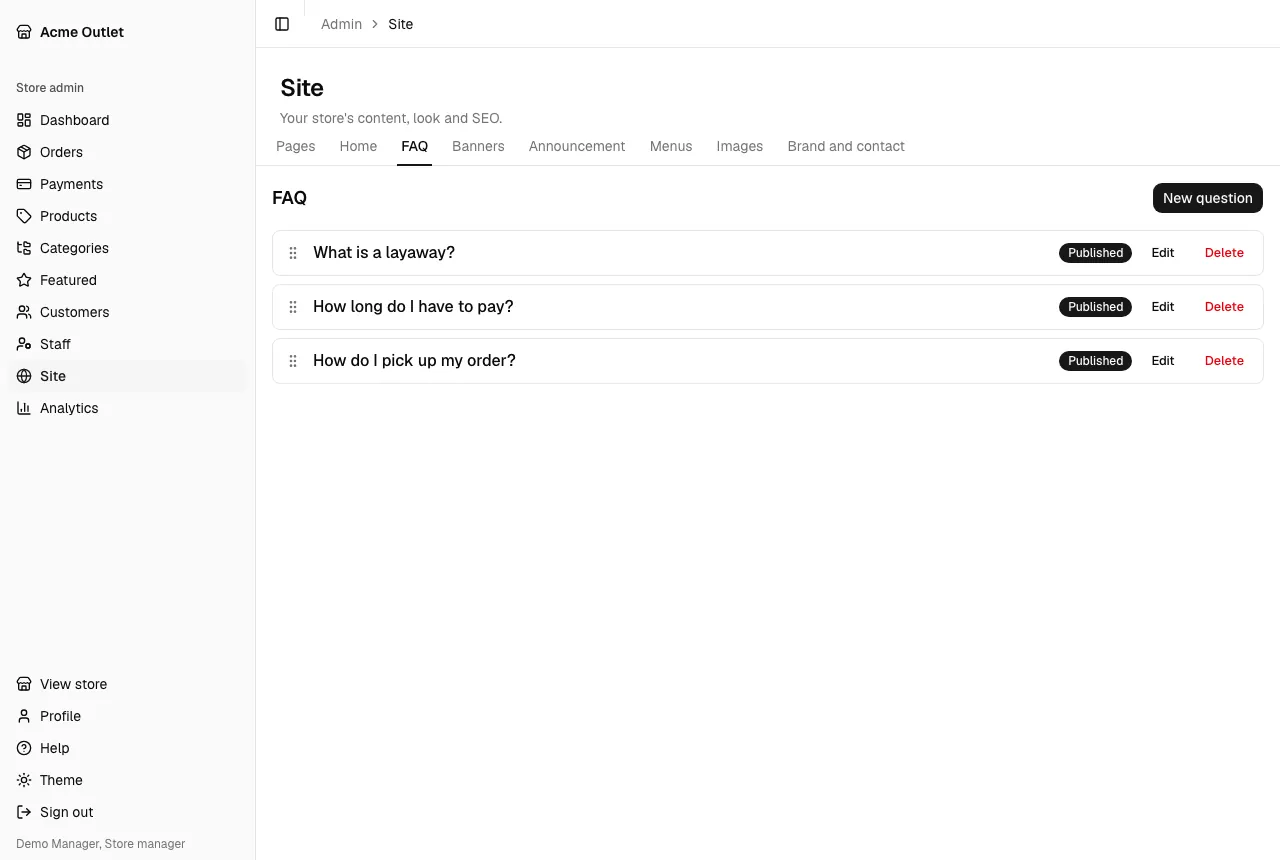
- New question: write the Question and its Answer (with the same editor as pages), an optional Category, and tick Published to show it.
- Drag a question by its handle (Drag to reorder) to change the order.
- Edit and Delete change or remove a question.
Questions with the same category are shown together.