Stores and domains
Stores lists every store, and each one’s page is where you manage it.
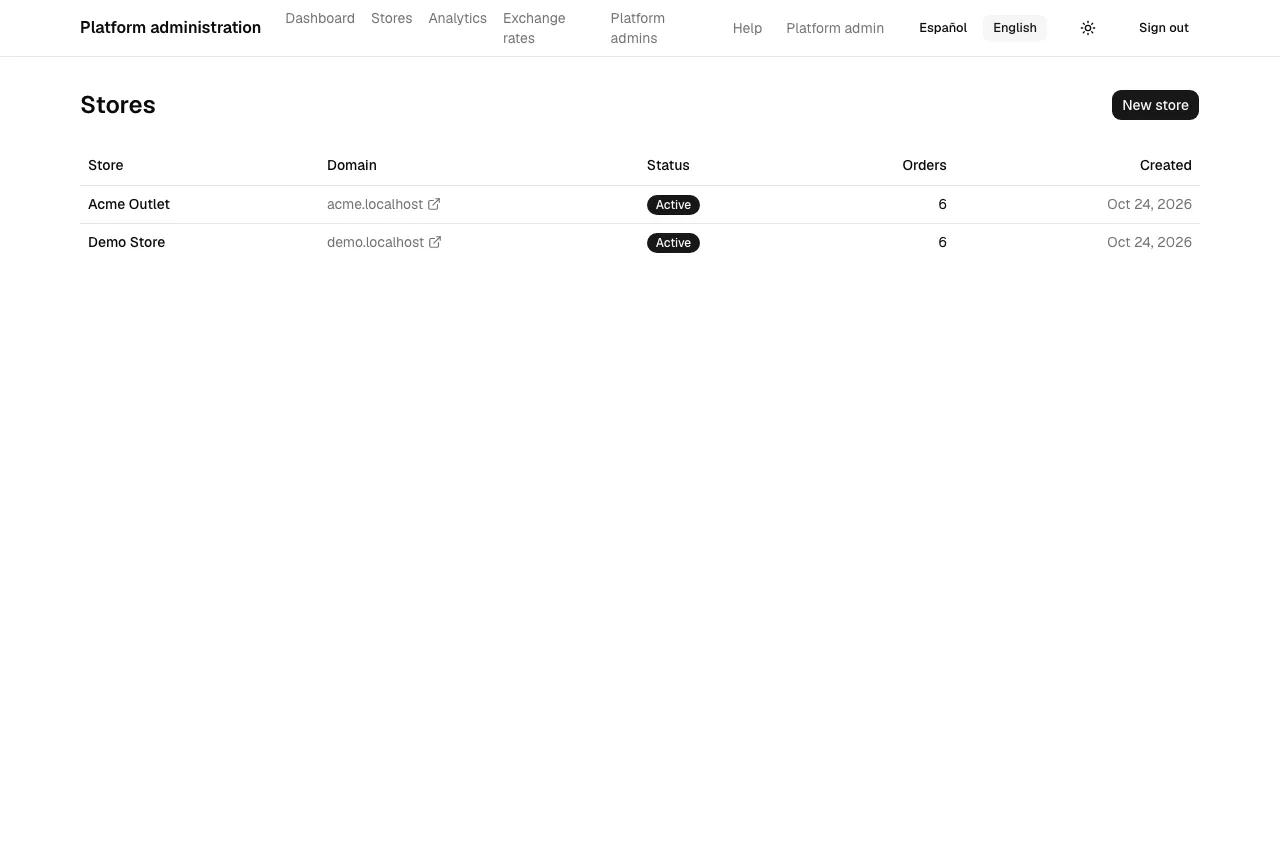
The list shows each Store, its Domain (the primary domain, or its subdomain), its Status, its Orders and when it was Created. Select a store’s name to open it, or its domain to see the store in a new tab. On each store’s page, Open store does the same.
Creating a store
Section titled “Creating a store”- Select New store.
- Fill in Store name and Subdomain: lowercase letters, digits and hyphens. The store will be at the subdomain you choose on the platform’s root domain.
- Choose the Country preset: Costa Rica (colones, 13% tax, Costa Rica time), Panama (US dollars, 7% tax, Panama time) or Other (US dollars, no tax; you also choose the Time zone, an IANA name such as America/Guatemala). The store’s owners can change these later in their settings.
- Fill in the Administrator’s name and Administrator’s email. They receive a link to set their password.
- Select Create store.
This creates the store, sets up its subdomain, loads its country’s provinces or states and districts (Costa Rica and Panama), and invites its first administrator. A store created with Other starts with no locations: customers can’t save a billing address or pay online until its administrators import or add them in Settings, and its dashboard reminds them. If the subdomain is taken you see “Another store already uses this subdomain.”
A store’s page
Section titled “A store’s page”The store’s name and subdomain are at the top, with the button to suspend or reactivate it.
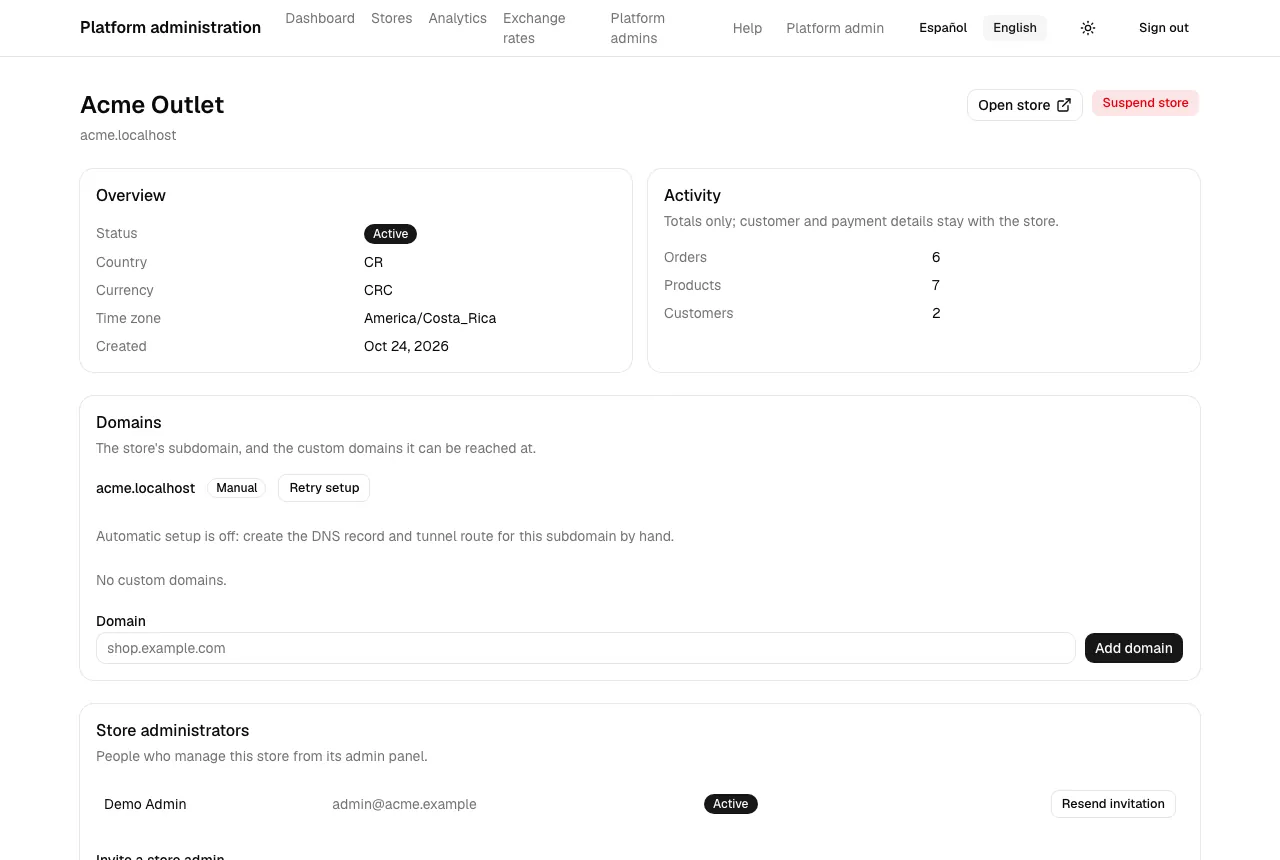
- Overview: Status, Country, Currency, Time zone and when it was Created.
- Activity: Orders, Products and Customers, as totals only. Customer and payment details stay with the store.
- Domains: described below.
- Store administrators: “People who manage this store from its admin panel.” An admin who hasn’t set a password yet shows Invitation pending, and Resend invitation sends them a new link, valid for 72 hours. A store without admins shows “This store has no administrators yet.”
Inviting a store administrator
Section titled “Inviting a store administrator”Use this when a store has no administrator, or the one it had has left.
- Open the store’s page and go to Store administrators.
- Under Invite a store admin, fill in Name and Email.
- Select Send invitation.
You see “Invitation sent. The link works for 72 hours.” The person receives a link to set their password.
If that email already has an invitation waiting, no second account is created: a new link is sent and you see “This person already had a pending invitation; a new link was sent.” If the email already has any other account in this store, you see “This email already has an account in this store.” and nothing is sent. This includes a disabled administrator, so to bring someone back in that situation, invite a different email. The same email can have an account in another store.
Domains
Section titled “Domains”Domains shows “The store’s subdomain, and the custom domains it can be reached at.”
- The subdomain has a status. If it shows Failed or Manual, select Retry setup. Manual means automatic setup is off: “create the DNS record and tunnel route for this subdomain by hand.”
- To add a custom domain, use Add domain and type it (for example shop.example.com). It
appears as Pending with the DNS records the store’s owner must create (a
CNAMEand, when listed, aTXT). The store’s owner can also do this from their own Domains settings. - Check now asks for a fresh status. Statuses are Active, Pending, Failed and Manual (“Set up by hand”).
- Make primary (only for an Active or Manual domain) makes emails and payment pages use that domain; Stop using as primary goes back to the subdomain.
- Remove (“Remove …?”): “The store stops answering on this domain.”
A domain you can’t add shows “Enter a domain such as shop.example.com.”, “This domain belongs to the platform.” or “This domain is already in use.”
Suspending a store
Section titled “Suspending a store”Suspend store (“Suspend this store?”): “Its storefront and admin show a maintenance page and background jobs skip it. Payments already in progress are still recorded.” The store shows as Suspended. Reactivate store brings it back as Active.