Analytics
Analytics answers how the store is doing. Open it from the Analytics entry in the menu; it appears when your role can open at least one report. There is one page per report, plus the Overview.
Who sees which report
Section titled “Who sees which report”A report your role can’t open is not in the list, and opening its address gives a “page not found”. If you open Analytics and can’t see the Overview, you are taken to the first report you can open.
| Report | Store manager, store admin | Accounting | Warehouse |
|---|---|---|---|
| Overview, Live view, Collections, Layaway performance, Products, Customers, Funnel, Traffic | yes | ||
| Sales and Payments | yes | yes | |
| Fulfilment and stock | yes | yes |
The controls
Section titled “The controls”Every report has the same controls at the top. They are kept in the page address, so you can bookmark a report or send its link to a colleague, who sees the same view.
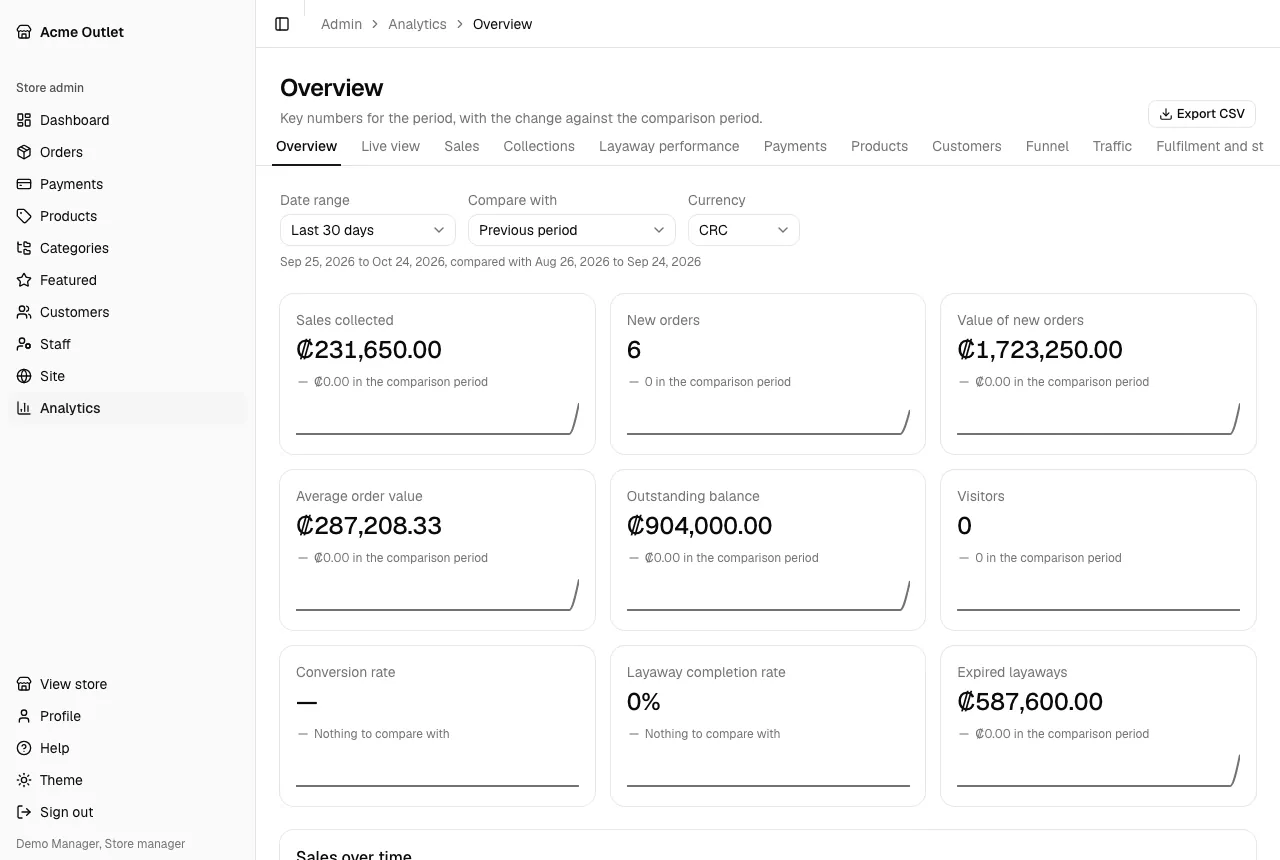
- Date range: Today, Last 7 days, Last 30 days, This month, Last month, This year, or Custom, which asks for From and To dates. Days are the store’s own calendar days (see the time zone in Settings).
- Compare with: Previous period or Same days last year. Every figure shows how it changed against that period, such as “Up 12% from …”, “Down … from …”, “No change” or “Nothing to compare with”.
- Currency: money is never added up across currencies, so choose which currency’s figures you want to see.
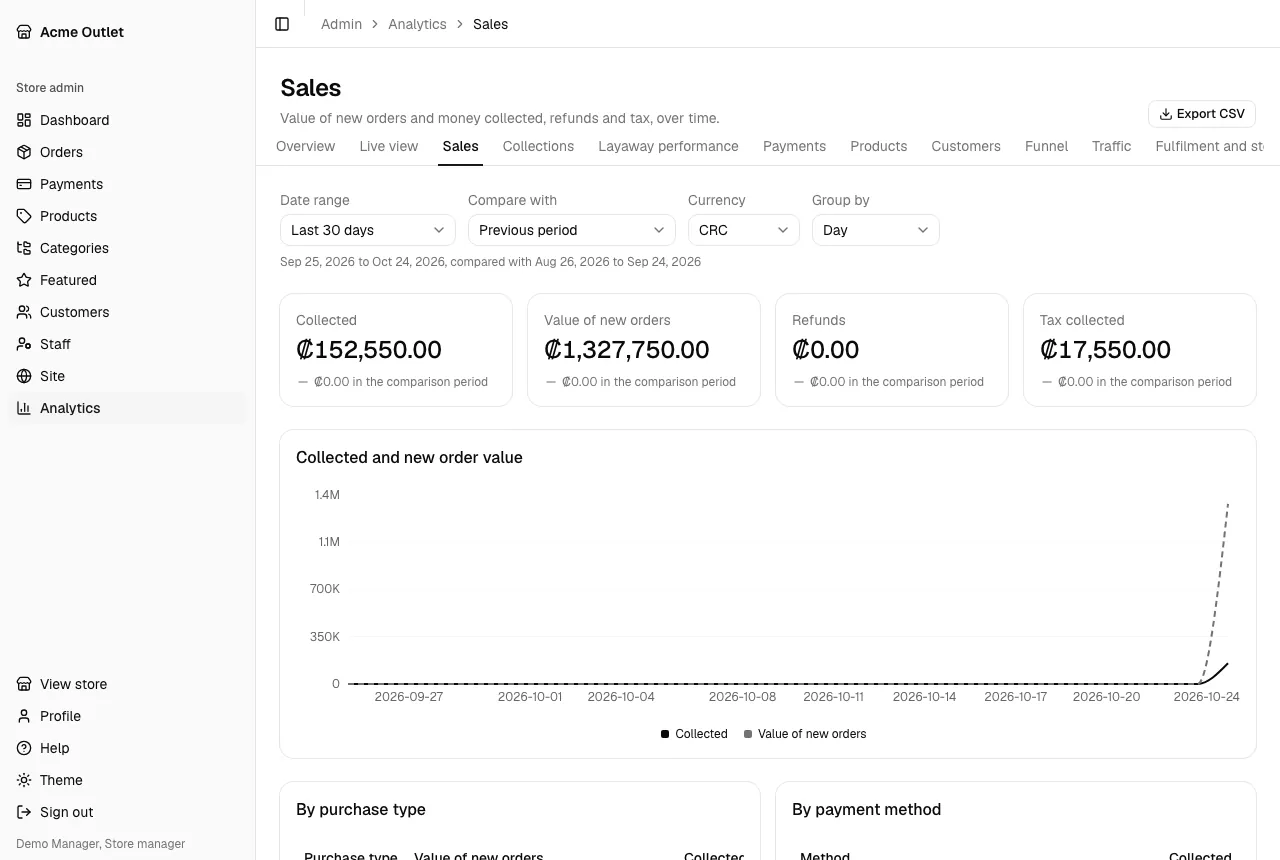
- Group by: Day, Week or Month, for the reports that show figures over time. It starts from a sensible choice for the length of the range.
The Overview
Section titled “The Overview”Each card shows its value for the period, how it changed against the comparison period, and a small trend line:
- Sales collected: approved payments in the period, minus refunds.
- New orders: orders created in the period, layaways and full purchases.
- Value of new orders: the total of those orders.
- Average order value: that value divided by the number of new orders.
- Outstanding balance: at the end of the period, what the layaways that have started and are not paid off, expired or cancelled still owe.
- Visitors: distinct visitors to the store each day, added up over the days.
- Conversion rate: orders that received a first payment, divided by visitors.
- Layaway completion rate: layaways paid off, out of the layaways that ended in the period (paid off, expired, or cancelled after a first payment). Orders that never received a payment are left out. A period with no ended layaways shows no rate.
- Expired layaways: the value of the layaways that expired in the period.
Below the cards, Sales over time charts the money collected over the period.
The Live view
Section titled “The Live view”Live view shows what is happening now. It has no date range, no comparison and no CSV, and it refreshes by itself every 30 seconds while the tab is open (“Updated at …” says when it last did).
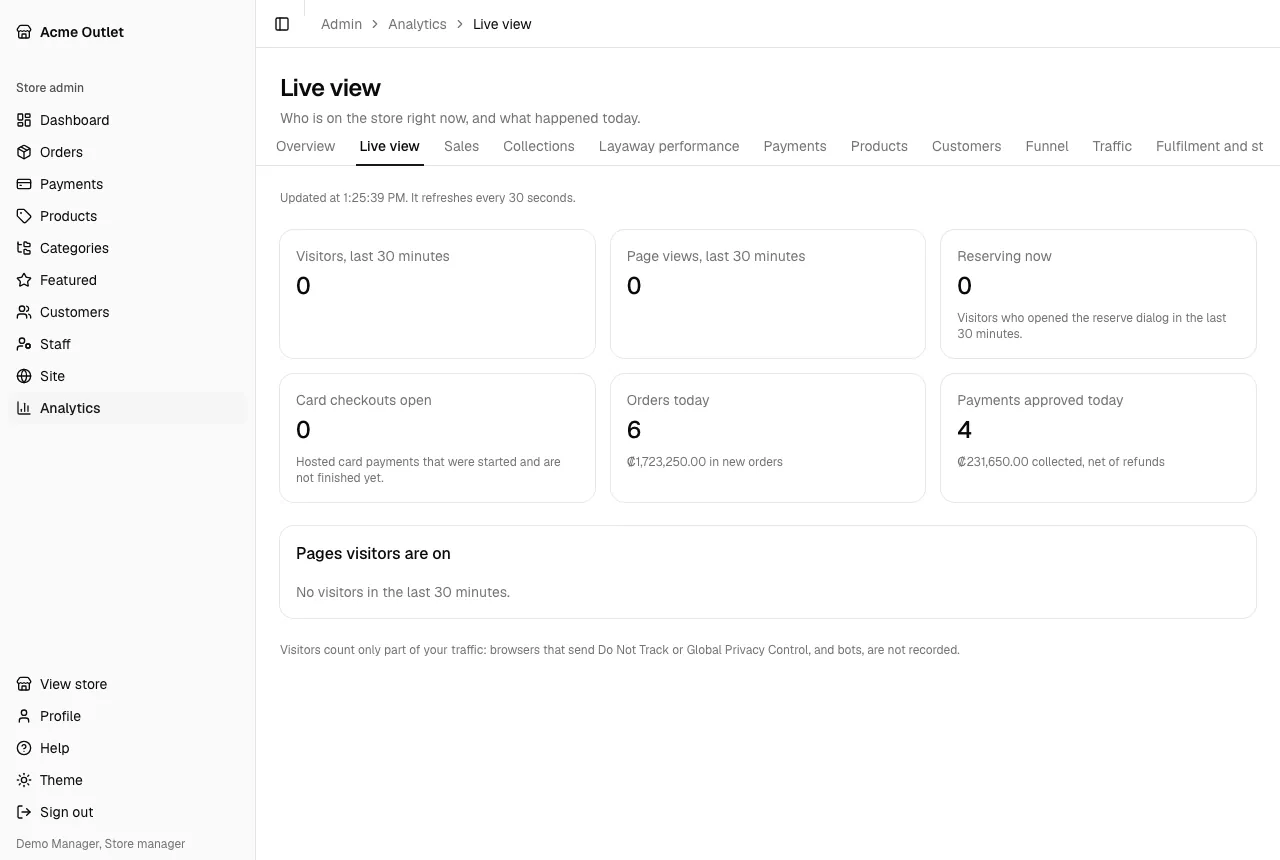
- Visitors, last 30 minutes and Page views, last 30 minutes.
- Reserving now: visitors who opened the reserve form in the last 30 minutes.
- Card checkouts open: card payments that were started and haven’t finished yet.
- Orders today, with the value of the new orders, and Payments approved today, with the money collected net of refunds. “Today” is the store’s own calendar day.
- Pages visitors are on: the pages the last half hour’s visitors are looking at.
The visitor figures have the same limits as Traffic (see “Good to know” below).
Monthly sales goal
Section titled “Monthly sales goal”When the store has a goal for the selected currency, the Overview shows a Monthly sales goal card marked This month. It shows how much has been collected of the goal (“… collected of …”), a progress bar, the share of the goal reached (“… of the goal”) and the pace you would expect by now (“Expected by now: …, day … of …”). The amount is this calendar month’s sales collected, approved payments minus refunds, as on the Sales collected card. The card does not follow the date range or the comparison.
Store admins who have not set a goal for the currency see a Set a monthly goal for … link instead. Goals are set per currency under the Analytics tab of Settings.
The reports
Section titled “The reports”- Sales: Collected, Value of new orders, Refunds and Tax collected over time, split By purchase type (layaway or full payment) and By payment method.
- Collections: what is still owed on open layaways: Owed with no payment for 30+ days, Owed past the deadline, the balances by time since the last payment, by deadline month, and Collection by month of order, which shows how much of each month’s orders has been paid.
- Layaway performance: how layaways end (Paid off, Expired, Cancelled after paying, Abandoned before paying) with the completion, expiry and abandonment rates, and how customers pay: Average down payment, Average days to pay off, Average payments per layaway, the share that changed product, and how many expiry reminders were followed by a payment.
- Payments: Card approval rate, Cards approved and Cards declined, Decline reasons as the card processor reported them, the Card checkouts that were paid, failed or abandoned, the Hours to review a transfer, and the refunds.
- Products: views, orders, units and revenue for each product, By category, and the Slow movers: published products in stock without an order in the period.
- Customers: New customers and Returning customers, how many Ordered more than once, the Top customers, and the Layaways without recent payments.
- Funnel: the steps from a visit to a paid order, with the drop-off at each, and the same By device: Visited, Viewed a product, Opened the reserve form, Placed an order, Started a card payment and Made a first payment.
- Traffic: Visitors and Page views over time, the Top pages, Referring sites, Campaigns, Countries and Devices (Desktop, Mobile, Tablet).
- Fulfilment and stock: orders Awaiting delivery and how long they have waited, the ones Longest waiting, Delivered orders, Products out of stock, Stock levels and Stock movements.
Export CSV
Section titled “Export CSV”Export CSV, at the top right of each report, downloads what is on screen as a spreadsheet file, for the same date range, comparison and currency. The file has one table per section of the report, each with its title. Money is written as a plain number, with the currency in the column header, so a spreadsheet can add it up.
Good to know
Section titled “Good to know”- Visitors, Funnel and Traffic count only part of your visitors. They come from the store’s own visit events, which are not recorded for browsers that send Do Not Track or Global Privacy Control, or for known bots. Treat those figures as a lower bound.
- Freshness. The reports update every hour for today and yesterday, so they can be up to an hour behind; earlier days are settled overnight. The Overview is calculated on the spot.
- A report with no data shows “Nothing in this period.”
- Alerts for card declines and for layaways without payments appear on the Dashboard, and a weekly summary can be emailed to you; see Your profile.
- There is no live view of visitors yet.