Contact details, brand and images
Brand and contact
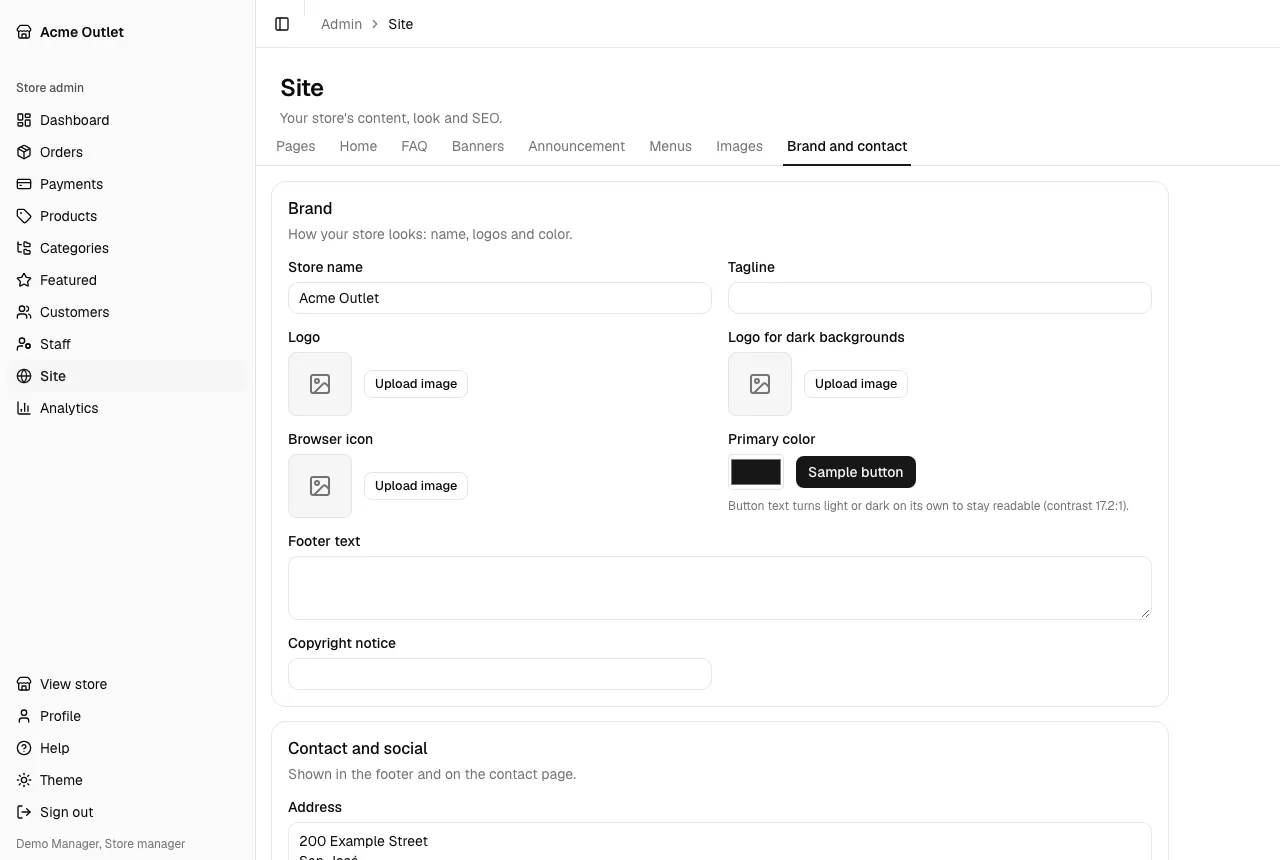
Section titled “Brand and contact”The Brand and contact tab has three sections: Brand, Contact and social and SEO. Save your edits with Save changes.
Contact and social
Section titled “Contact and social”These appear in the store’s footer and on its contact page. Fill in only what you want to show:
- Address, Phone, WhatsApp, Email and Opening hours.
- Map link: an https address.
- Social networks: Add network, choose the Network (Facebook, Instagram, TikTok, X, YouTube, LinkedIn or WhatsApp) and write the Profile address.
Each field that is empty is left out. If you leave all of them empty, the footer has no contact column and the store has no contact page. Phone, WhatsApp and email become links customers can tap to call, message or write; map and social links are shown only when they are https addresses.
The Sharing image is the default image shown when a link to the store is shared on social networks. A page with its own sharing image uses that one instead. A product uses its first image.
What you save here is what customers see:
- Store name: in the header when there is no logo, in the footer and in the browser tab.
- Logo: in the header, in place of the store name. The name stays as the logo’s description for screen readers. Logo for dark backgrounds is kept for later: the store has no dark theme yet.
- Tagline and Footer text: in the footer, above the copyright line.
- Copyright notice: the footer’s last line. Leave it empty to get “© year store name. All rights reserved.”
- Browser icon: the small icon in the browser tab.
- Primary color: the color of the store’s buttons, links and announcement bar. Pick it with the color field; the text on top of it turns light or dark by itself so it stays readable, and the line under the field shows the contrast. Use the neutral color goes back to the standard black and white. The admin keeps its own neutral look.
- Title and Description (under SEO): the title shown in search results and browser tabs for pages that don’t have their own, and the description search engines show for the store. If the description is empty, the tagline is used.
Images
Section titled “Images”Images is the library of every image the store has uploaded, for products, banners, pages and the rest.
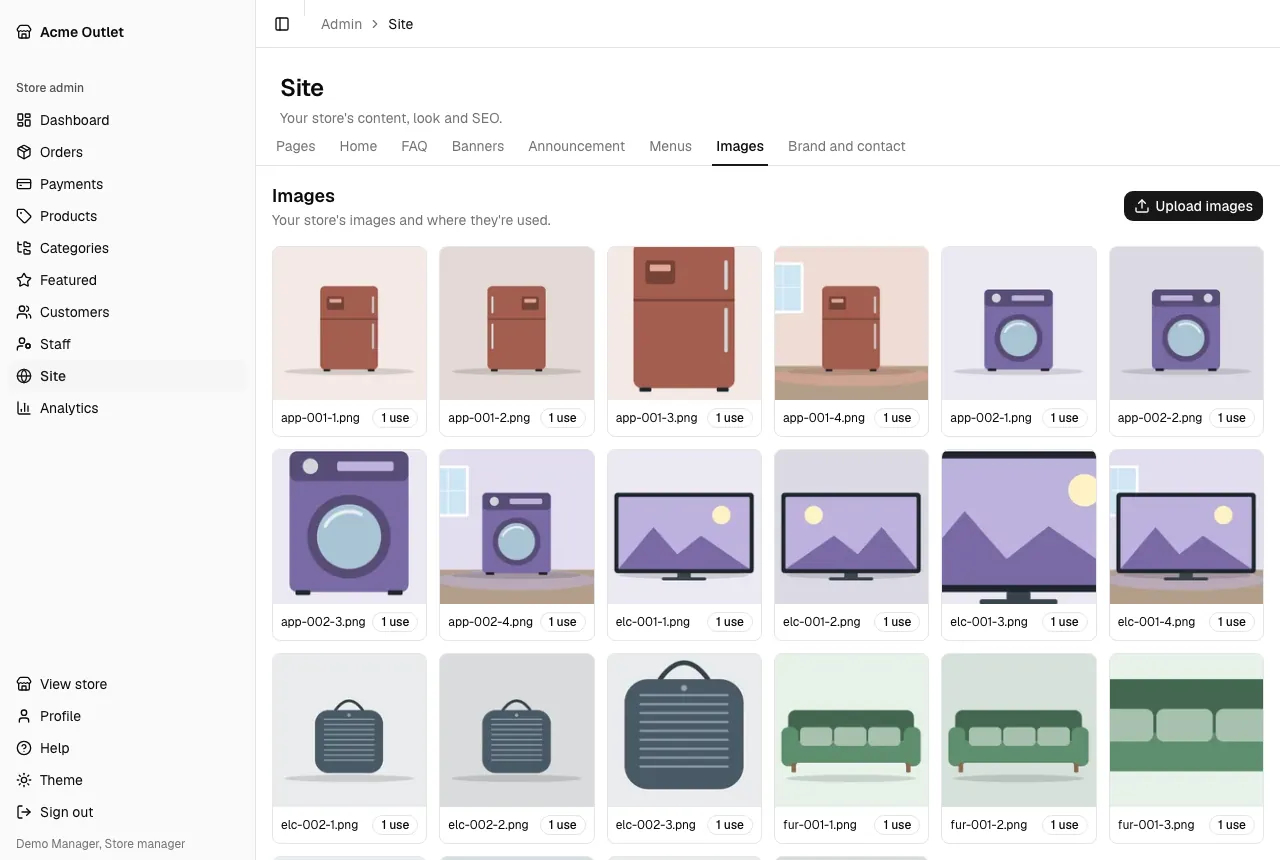
- Upload images adds one or more (JPG, PNG, WebP or AVIF, up to 10 MB each).
- Each image shows how many times it is used. Open it to see Where it’s used: a product, a banner, a page, a question, a home section or the brand.
- Delete image removes an image that is Unused, after a confirmation. An image that is in use can’t be deleted: remove it from the places that use it first.