Store settings
Settings is for store admins. It has seven tabs: Commerce, Payments, General, Email, Locations, Domains and Analytics.
Commerce
Section titled “Commerce”How the store sells. Changes apply to new orders only: each order keeps the terms it was placed with.
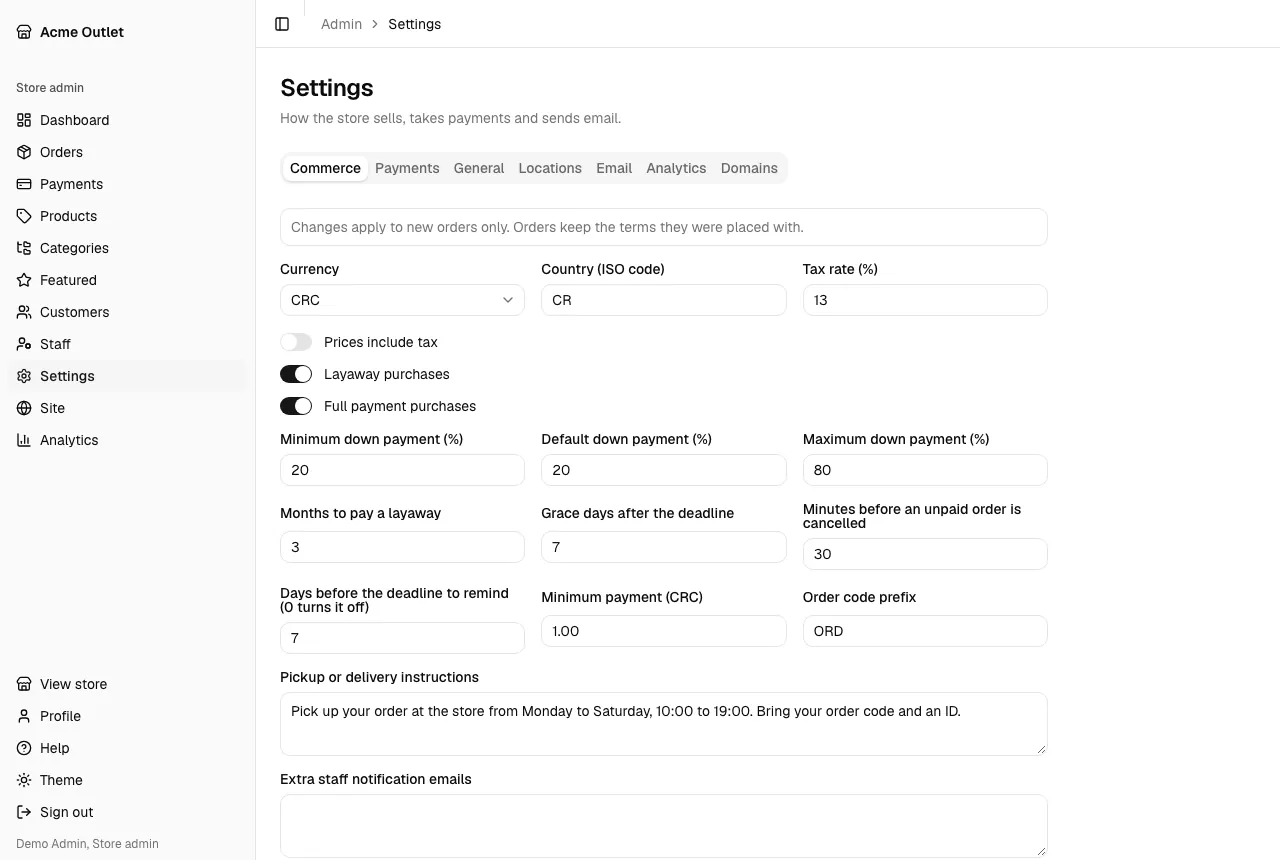
- Currency, Country (ISO code), Tax rate (%) and Prices include tax: whether product prices already contain the tax or the tax is added on top.
- Layaway purchases and Full payment purchases: turn either way of buying on or off for the whole store.
- Minimum down payment (%), Default down payment (%) and Maximum down payment (%): the range of the slider customers see and where it starts.
- Months to pay a layaway and Grace days after the deadline: together they set a layaway’s deadline when it is placed.
- Minutes before an unpaid order is cancelled: an order that gets no first payment in this time is cancelled and its product goes back on sale.
- Days before the deadline to remind: how long before the deadline customers get a reminder email. 0 turns reminders off.
- Minimum payment: the smallest installment a customer can pay, unless it settles what is left.
- Order code prefix: the start of order codes, such as ORD.
- Pickup or delivery instructions: shown to customers at checkout and on a paid order.
- Extra staff notification emails: more addresses that receive the staff emails, one per line.
Payments
Section titled “Payments”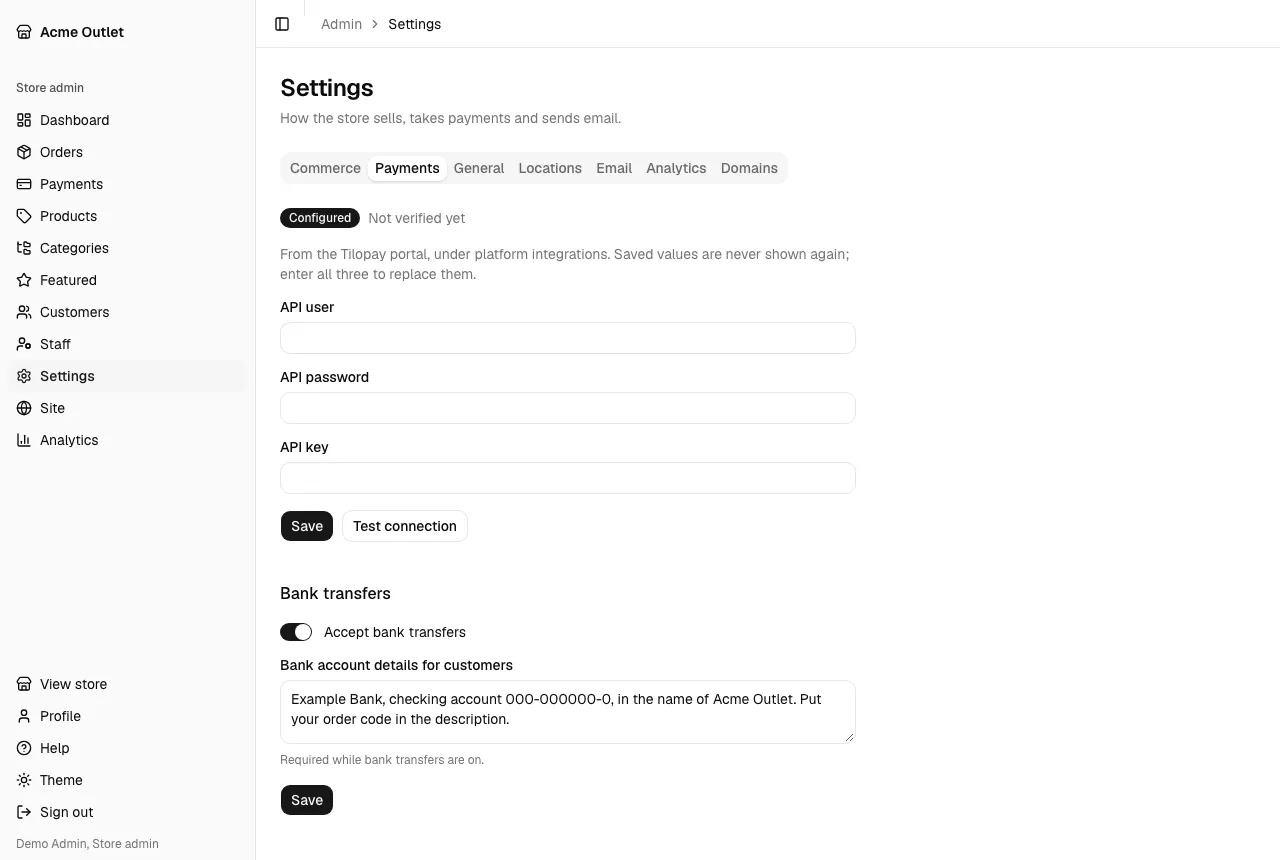
Card payments (Tilopay)
Section titled “Card payments (Tilopay)”Card payments need the store’s Tilopay credentials: the API user, API password and API key, from the Tilopay portal, under platform integrations. Enter all three and save.
The values are never shown again, so the fields are always empty; enter all three to replace them. A label shows Configured or Not configured, and another tells you when the credentials were verified (“Last verified …”, or “Not verified yet”), with the Environment (test or live) Tilopay reported.
Select Test connection to check them: “Tilopay accepted the credentials.” means card payments can work. Saving new credentials clears the last verification, so test again afterwards.
Bank transfers
Section titled “Bank transfers”Turn on Accept bank transfers and fill in Bank account details for customers. They are required while transfers are on, and are what customers see under How to transfer. Review the transfers they send in Payments.
General
Section titled “General”- Time zone: the dates in the admin, the store and the emails use it.
- Send a test email: sends a test message to your own address, to check the store’s email delivery. It arrives within a minute if delivery works.
Locations
Section titled “Locations”Locations holds the states and districts customers choose from in their billing address.
- A store created with the Costa Rica or Panama preset already has that country’s locations. A store created with Other starts with none, and the dashboard warns you until you add some.
- Import a country adds a country’s states and districts (Panama or Costa Rica) with their ISO codes. Locations that already exist stay, and you see how many were added.
- Add a state by hand, with its Name and ISO 3166-2 code (for example CR-SJ or PA-8). Select a state to edit it or to add and see its districts (Districts of …, New district). Each state shows how many customer addresses use it.
Card payments need the state’s ISO code, so a state without one is marked No ISO code, and a notice says that customers with an address there can’t pay by card until you add it.
Recent emails lists the latest emails the store sent, with the Date, who they went To, the Subject and whether they were Sent or Failed.
Domains
Section titled “Domains”The Domains tab is for using the store’s own web address. It is described in Domains.
Analytics
Section titled “Analytics”Goals and alerts for the analytics pages and the dashboard.
- Monthly sales goals: a Monthly goal for each currency, the amount you aim to collect each calendar month. Type it the way the store’s country writes amounts (1229.43 in Panama, 1229,43 in Costa Rica; either mark is accepted). Leave a currency empty for no goal. Progress shows on the analytics Overview.
- Alerts: they show on the Dashboard for staff who can open
the matching report.
- Card declines: increase (%): alert when the share of declined card payments over the last 7 days is more than this percent above the share over the 28 days before (1 to 1000, 50 unless changed).
- Card declines: minimum card payments: no alert when the last 7 days had fewer card payments than this, so a handful of attempts does not raise one (20 unless changed).
- Layaways without payments: days: alert when open layaways have gone more than this many days without a payment (1 to 365, 60 unless changed).
- Include alerts in the weekly digest: adds the active alerts to the weekly email described in Your profile.
Saving shows “Analytics settings saved.”