Finding products
The home page
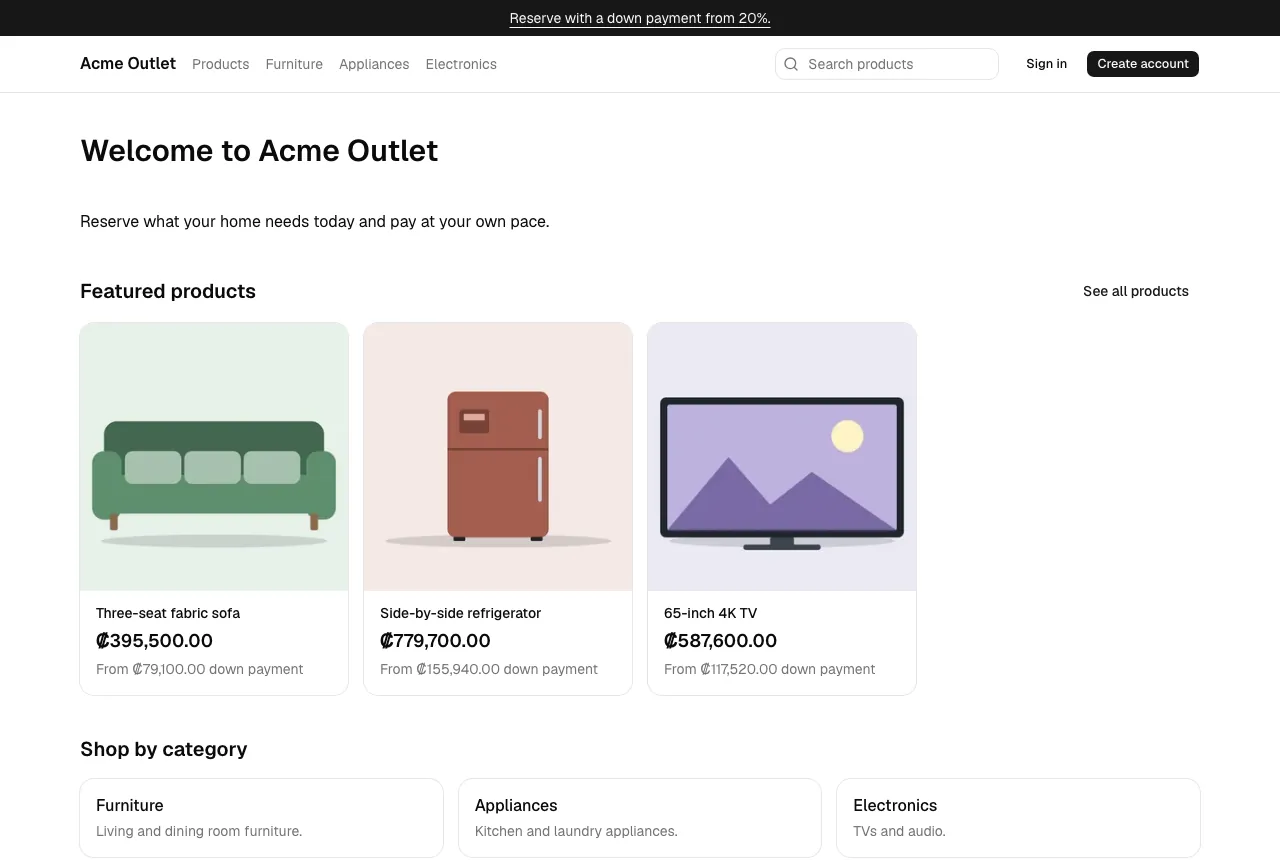
Section titled “The home page”The home page shows what the store chose to feature, such as banners, featured products, the main categories, how buying works and frequent questions. The menu at the top lists Products and the store’s main categories, and the search box looks for products by name or code.
Products and categories
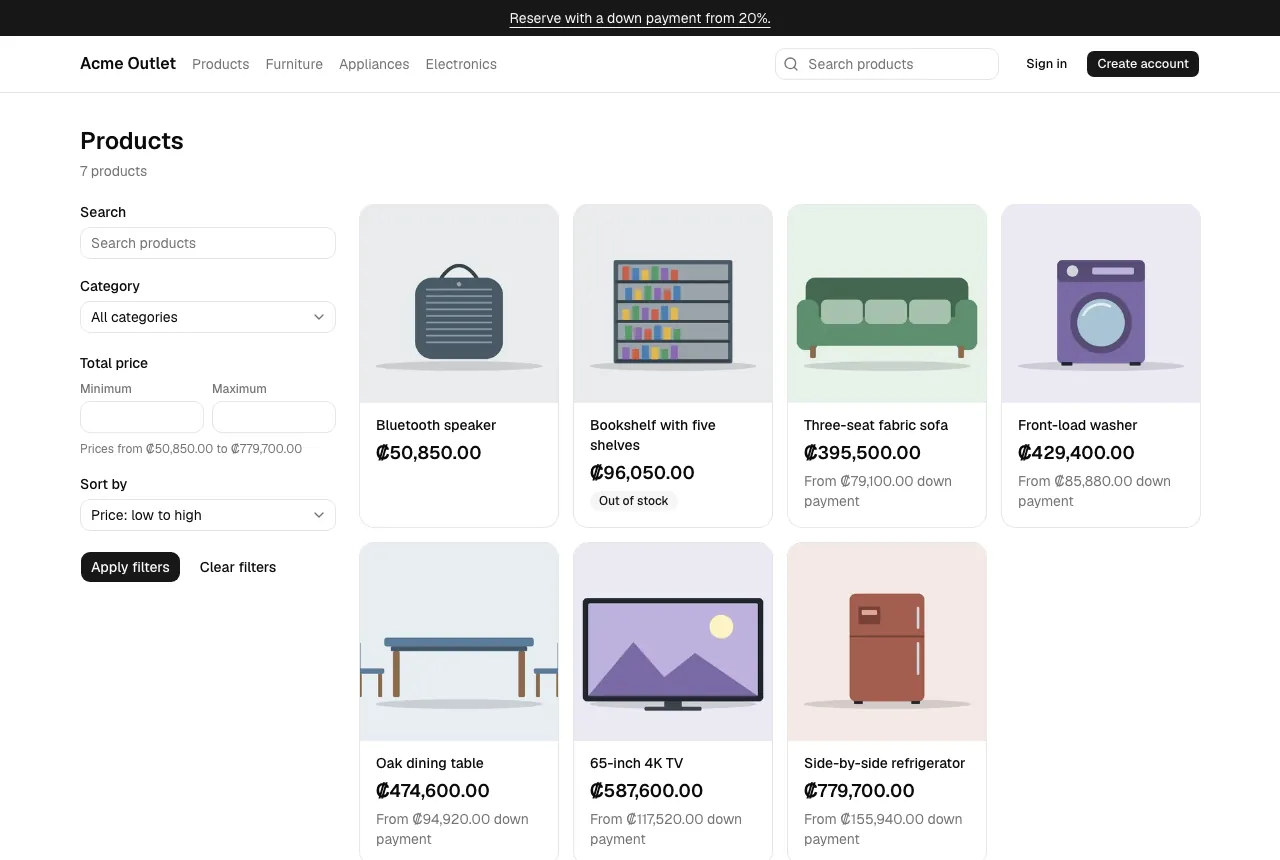
Section titled “Products and categories”Products lists everything the store sells; a category in the menu lists only its products. Each card shows the total price you pay and, when the product can be reserved, the smallest down payment it takes (“From … down payment”). Products that are sold out are marked Out of stock.
To narrow the list, use the filters beside it (behind Filters on a phone):
- Search: words in the name, code or description.
- Category: a main category or one of its subcategories.
- Total price: a Minimum and Maximum, in total price with tax. The range the store’s products cover is shown underneath.
- Sort by: name or price, in either order.
Select Apply filters to update the list, or Clear filters to start again. The filters are part of the page address, so you can share or bookmark a filtered list.
A product page
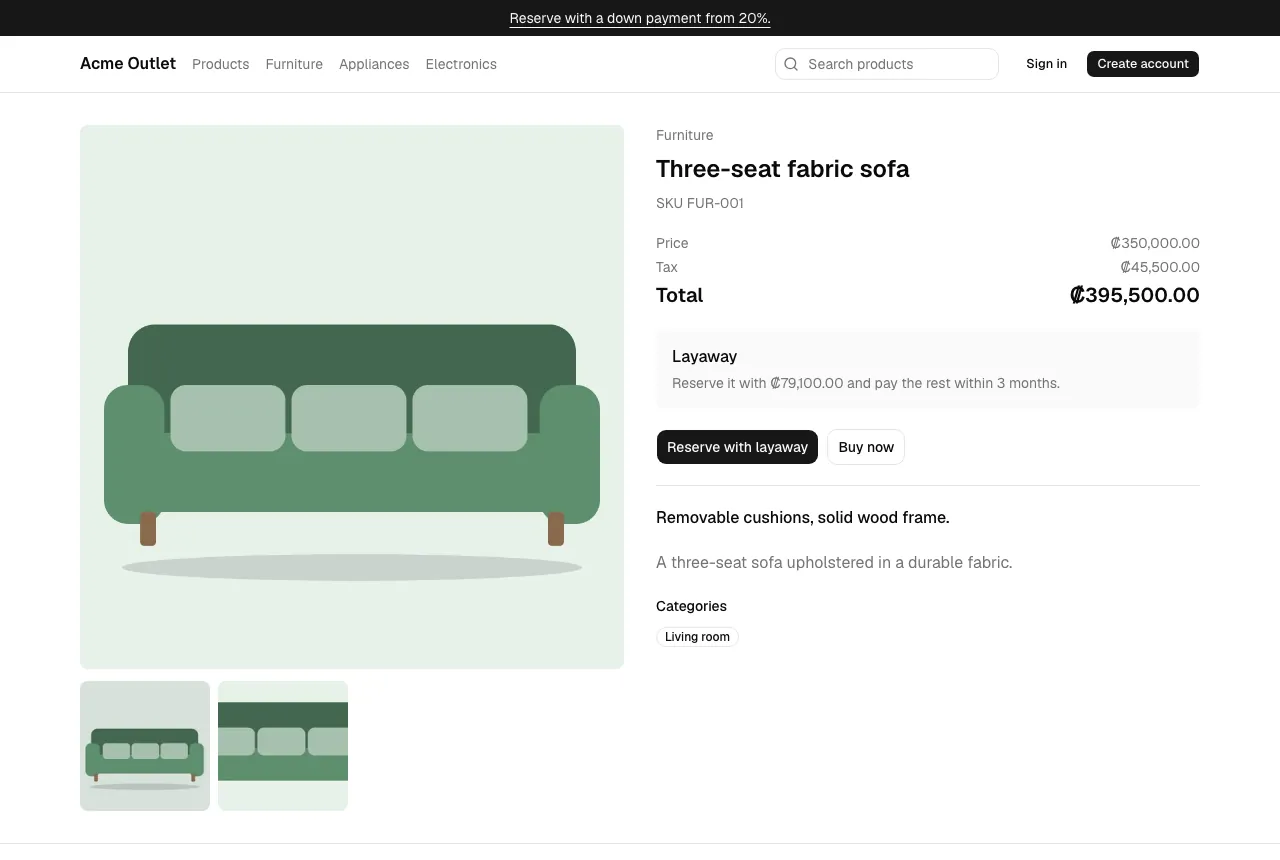
Section titled “A product page”A product page shows the product’s images, its code, the Price, the Tax and the Total. When the product can be reserved, the Layaway box says how much the default down payment is and how many months you have to pay the rest.
The buttons depend on the store and the product: Reserve with layaway, Buy now or both. A sold-out product says “This product is out of stock.” and has no buttons.
Next: layaway or pay in full.