Products, stock and categories
Products
Section titled “Products”Products lists the store’s catalog with each product’s image, SKU, Main category, Status, Price and how many are Available. Filter it by Status, by Main category or by a Title or SKU search.
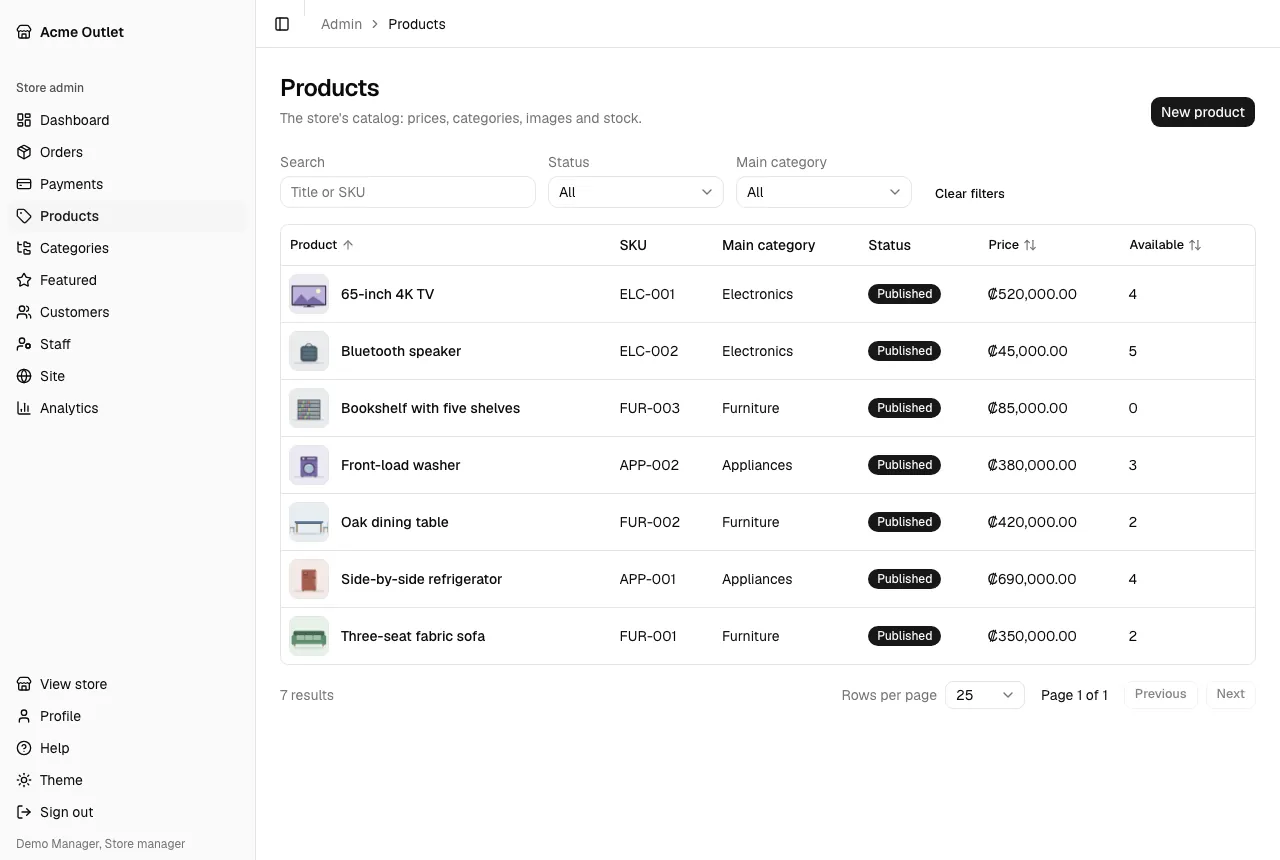
Select New product to create one, or a product to edit it. A product’s page has three tabs: Details, Images and Stock.
Details
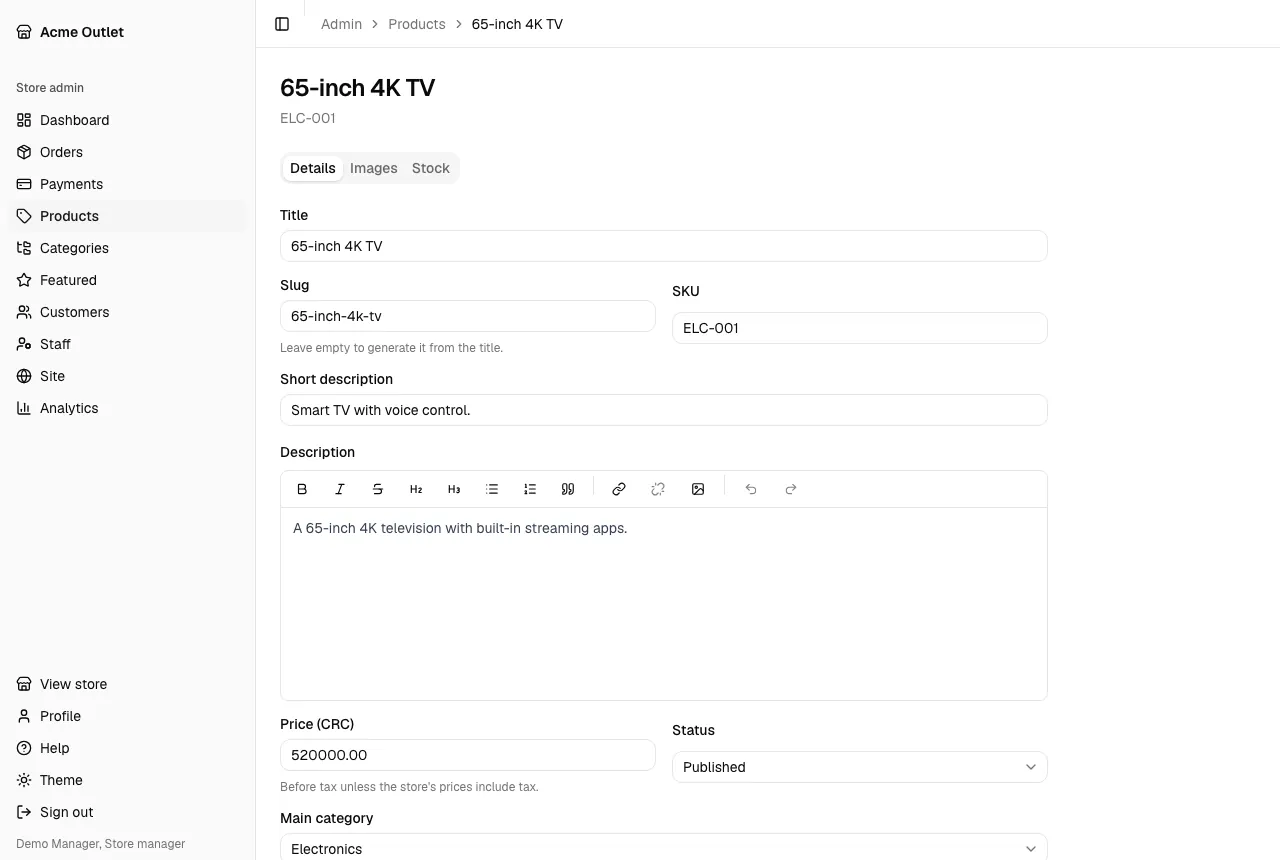
Section titled “Details”- Title, SKU, Short description and Description.
- Slug: the product’s web address. Leave it empty to generate it from the title.
- Price: before tax unless the store’s prices include tax (see Prices include tax in Settings). Type it the way the store’s country writes amounts (1229.43 in Panama, 1229,43 in Costa Rica; either mark is accepted).
- Main category and, if the category has any, Subcategories.
- Can be bought on layaway and Can be bought with one payment: turn either off to offer the product only the other way. The store’s own settings must allow that way of paying too.
- Status: Draft, Published or Archived. Only published products appear in the store.
Images
Section titled “Images”Select Upload image to add pictures. A badge marks the Listing image, the one shown in the store’s lists; it is the first image unless you pick another with Use in listings.
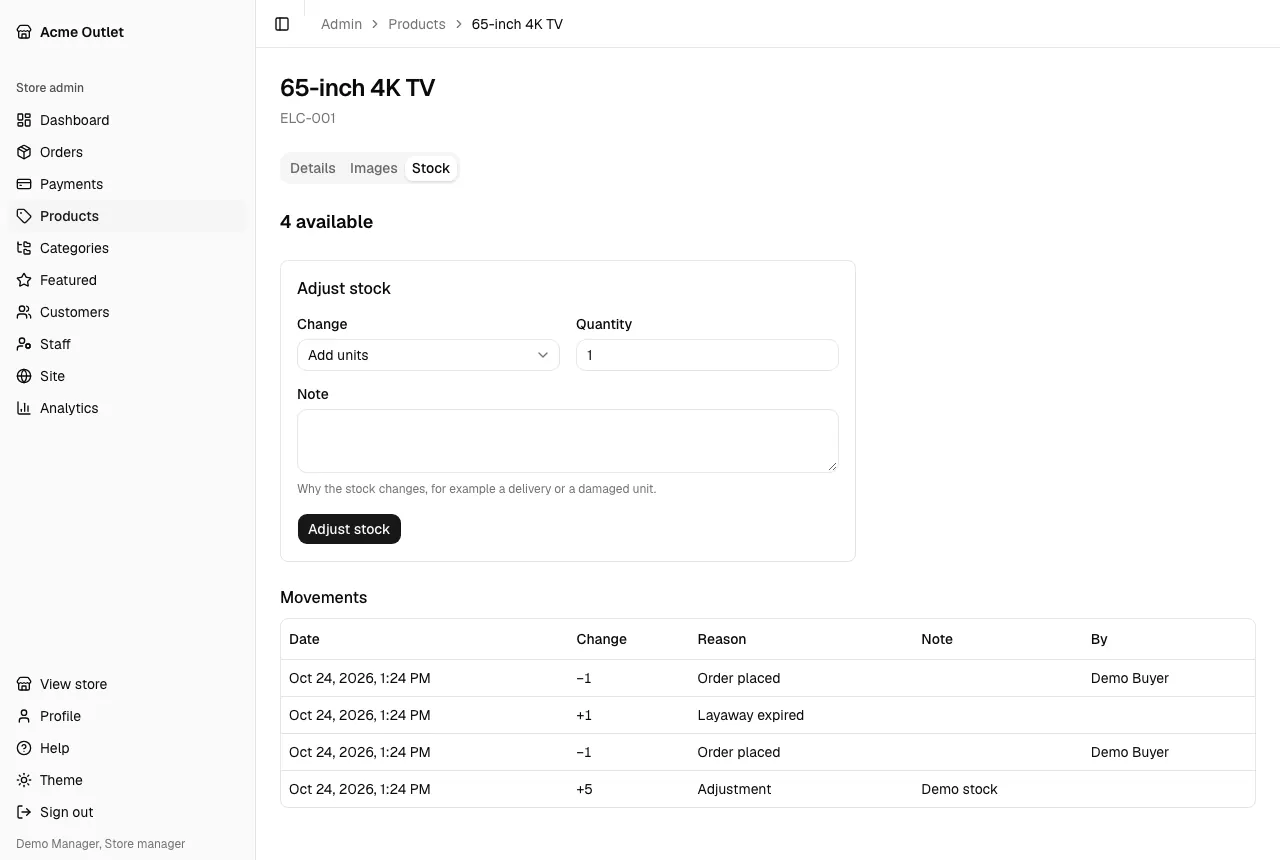
The Stock tab shows how many units are available and every movement that changed it, in Movements: the Date, the Change, the Reason, the Note and who made it (By). Orders move stock by themselves: Order placed takes a unit, and Order cancelled, Layaway expired, Product changed and Refund return or swap units.
To correct the count, use the Adjust stock form: choose the Change (Add units or Remove units), enter the Quantity and a Note that says why, such as a delivery or a damaged unit, then select Adjust stock. The note is required, and stock can’t go below zero.
Categories
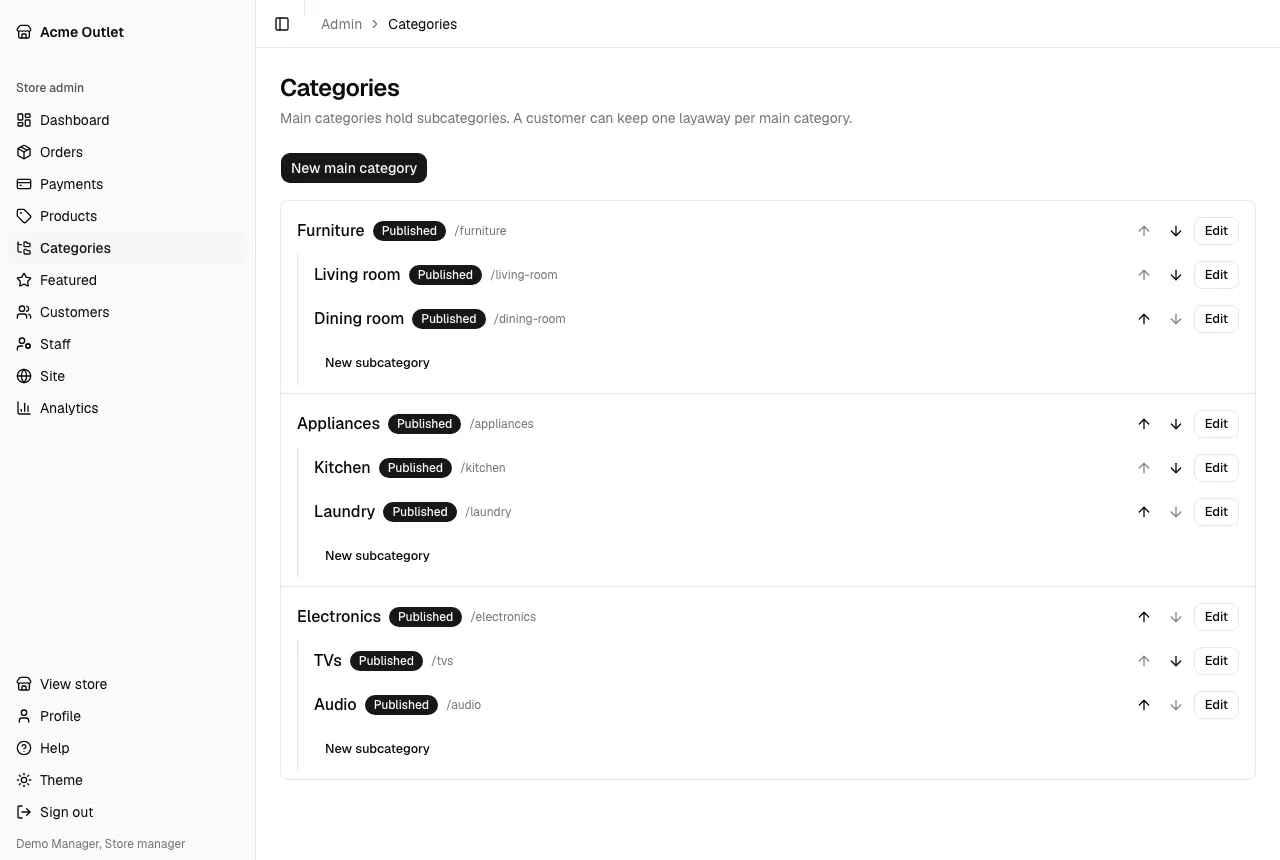
Section titled “Categories”Categories shows main categories, each with its subcategories. A customer can have one layaway in progress per main category, so choose your main categories with that in mind.
- New main category and New subcategory open a form with Name, Name in singular, Slug, Description, Belongs to (a main category has none) and Status.
- Select a category and use Edit to change it.
Featured products
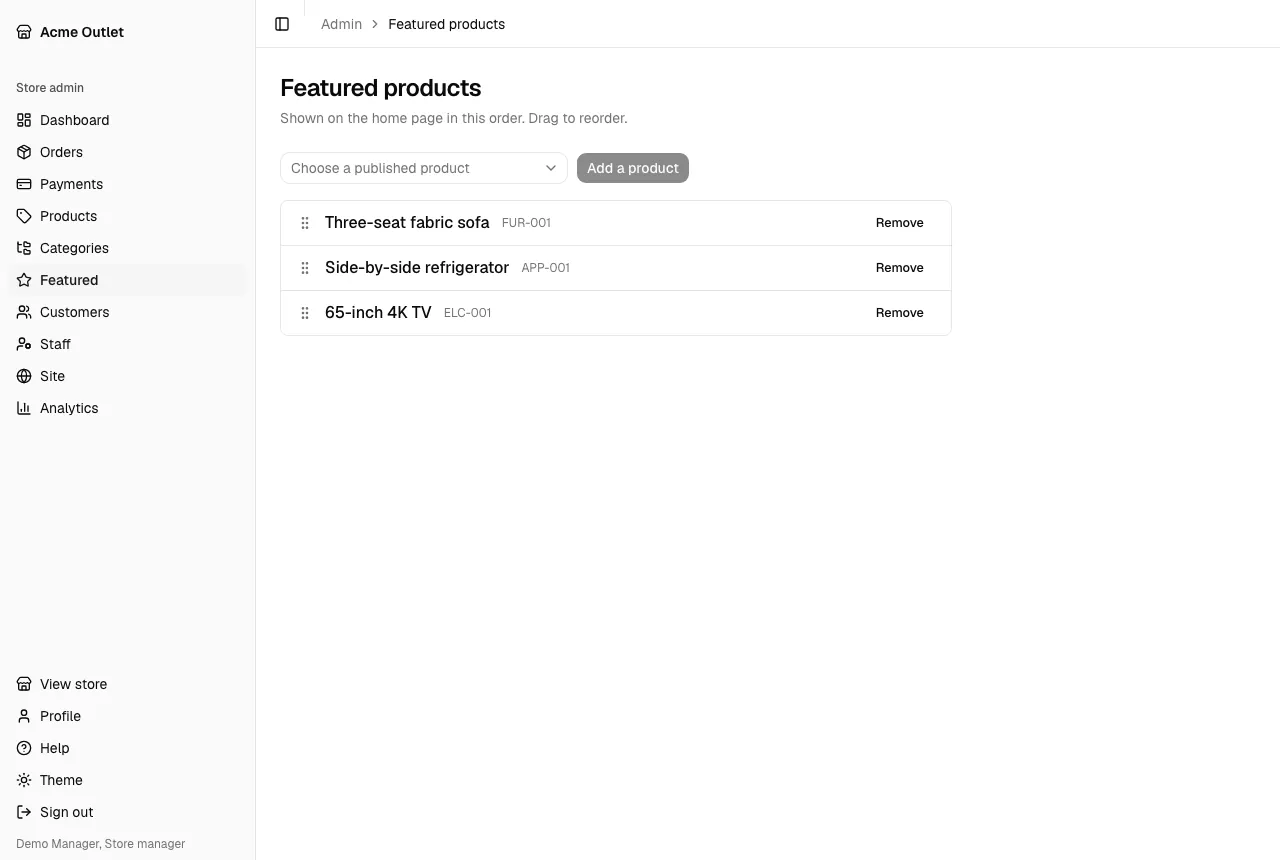
Section titled “Featured products”Featured lists the products shown on the home page when the home page uses the featured products section. Choose a published product under Add a product, drag the others to reorder them and select Remove to take one off.
Who can do what: see Roles and permissions. Warehouse staff see Products with the Stock tab only.