Domains
Settings → Domains is where customers’ addresses are managed. It is for store admins (the Domains tab is part of Settings).
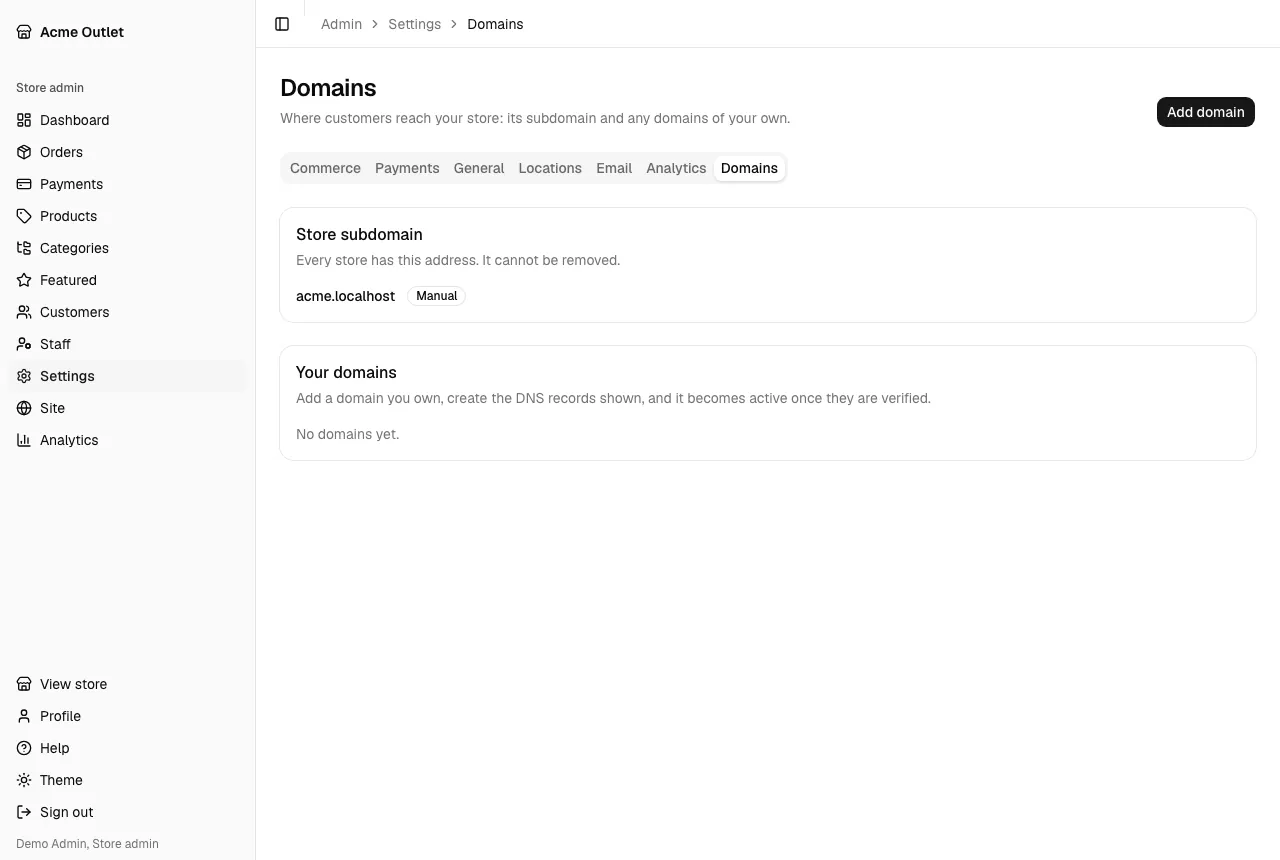
The store subdomain
Section titled “The store subdomain”Every store has its own address, shown under Store subdomain: “Every store has this address. It cannot be removed.” It has a status like the domains below.
Adding a domain
Section titled “Adding a domain”Use a domain you own, such as shop.example.com.
- Select Add domain.
- In Add a domain, type the domain and select Add domain.
- The domain appears under Your domains as Pending. Under DNS records to create, the page shows “The records appear here in a few seconds.” and then the records.
- At the company that manages your domain’s DNS, create the records exactly as shown: a
CNAME(name pointing to a target) and, when listed, aTXT(name and value).
These messages mean the domain was refused:
- “Enter a valid domain, such as shop.example.com.”
- “This domain belongs to the platform and cannot be added.”
- “This domain is already in use by a store.”
Statuses
Section titled “Statuses”Each domain shows a Status and a Last checked time (“Not checked yet” at first):
- Pending: waiting for your DNS records and the certificate. The system checks pending domains on its own; DNS changes can take a while to spread.
- Active: verified, and the store answers on it.
- Failed: something went wrong; a short code explains what, under the status. Check the records, then select Check again.
- Manual: “Set up by the platform team.” Nothing to create on your side.
Check again (“Asks for the current state of its DNS records and certificate.”) asks for a fresh check right away.
Choosing the primary domain
Section titled “Choosing the primary domain”The primary domain is the one emails and payment pages link to. Only an Active or Manual domain can be primary (“The domain must be active before it can be the primary domain.”).
- Make primary (“Use … as the primary domain?”): emails and payment pages link to it. The domain then shows Primary.
- Stop using as primary (“Go back to the store subdomain?”): emails and payment pages link to the store subdomain again.
Removing a domain
Section titled “Removing a domain”Remove (“Remove …?”) stops the store answering on that domain: “The store stops answering on this domain.” The change is immediate. Remove the DNS records at your DNS provider too, if you no longer need them.
If a domain is no longer in your store, you see “This domain is no longer in your store.”