Signing in to the admin
The admin lives in the same address as the store, under /admin: for a store at
https://shop.example.com, open https://shop.example.com/admin.
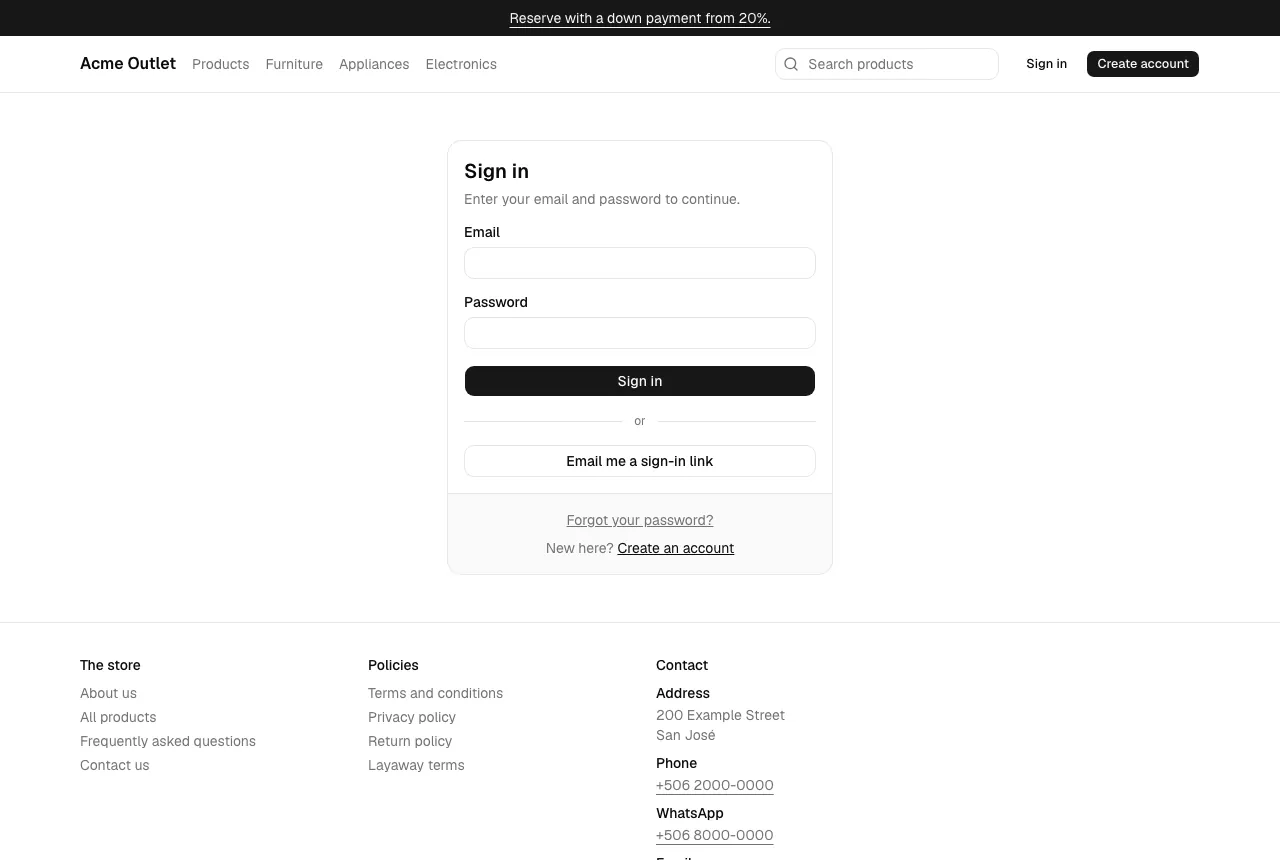
- Open the admin address. If you are not signed in, you are taken to the store’s Sign in page.
- Enter your Email and Password and select Sign in.
- The store emails you a 6-digit code and the page changes to Enter your sign-in code. Type the code and select Verify.
- You come back to the admin page you asked for, and the menu shows your name and role at the bottom.
If you sign in from the store’s Sign in page without asking for another page, you also land in the admin. While you browse the store signed in as staff, your account menu (top right) includes Admin panel to go back to it.
The sign-in code
Section titled “The sign-in code”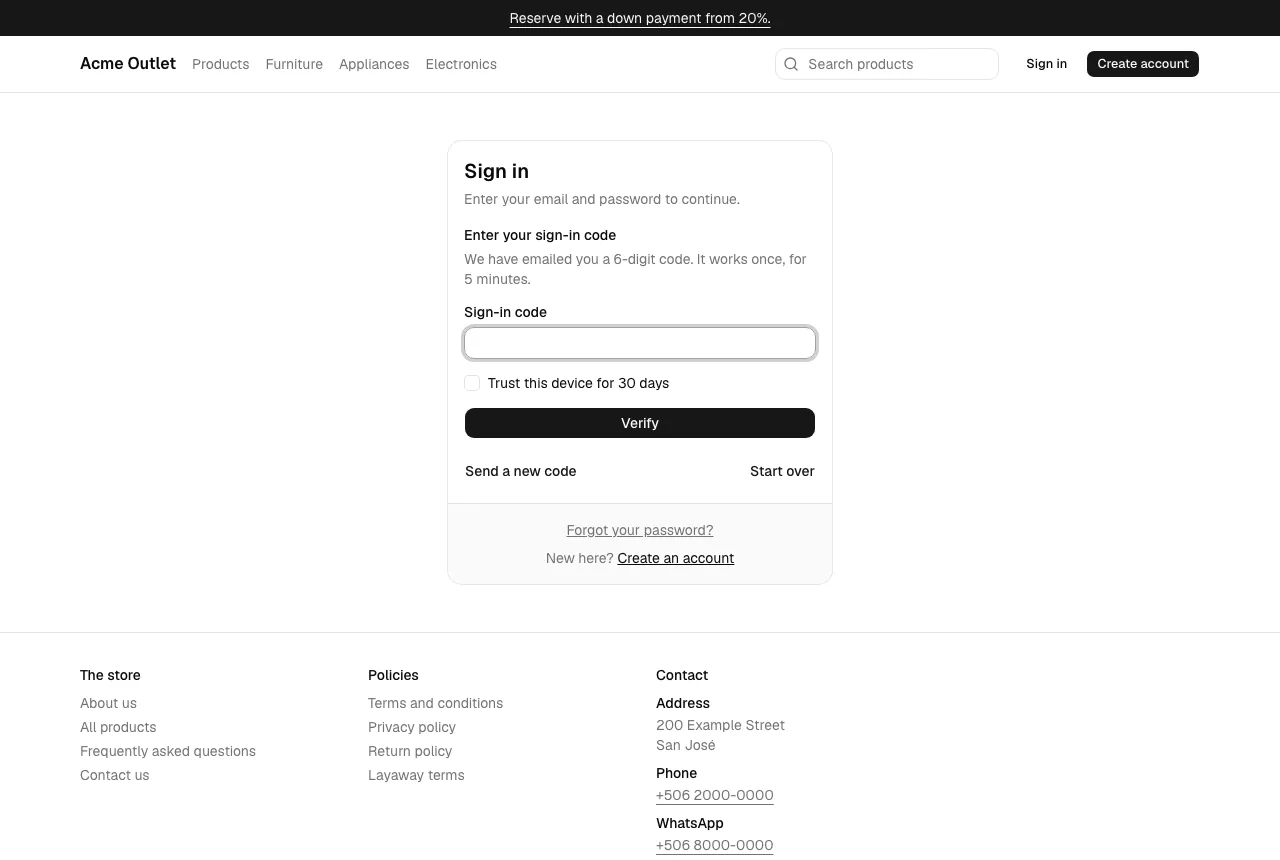
Every staff account signs in with the password and then a code sent to the account’s email. Customers are not asked for one. The code works once, for 5 minutes, and you have 5 tries per code. After you enter your password you have 10 minutes to finish the code step; after that the page says “Your sign-in timed out. Enter your email and password again.”
- The code didn’t arrive. Check your spam folder, then select Send a new code. You see “A new code is on its way. Only the newest code works.” so use the latest email, not an earlier one.
- The code is wrong or expired. “That code is not right. Check the email and try again.” means you mistyped it. “This code has expired or has been tried too many times. Send a new code.” means you need Send a new code.
- You want to start over. Select Start over to go back to the email and password.
- Too many requests. Asking for many codes or entering many wrong ones in a short time is refused for a while with “Too many attempts. Wait a moment and try again.” Wait and try again.
Trusting a device
Section titled “Trusting a device”Tick Trust this device for 30 days before you select Verify and this browser won’t ask for a code for 30 days. Only tick it on a computer you control. A browser is forgotten, and asks for a code again at the next sign-in, when the password is set from a reset or invitation link or changed from your account. Accepting an invitation therefore always ends with a sign-in that asks for a code.
Getting an account
Section titled “Getting an account”Staff can’t create their own accounts. A Store manager or Store admin invites you from Staff, and you receive an email with a link to set your password. The link works for 72 hours; if it expires, ask them to resend the invitation. See Staff and invitations.
If you can’t get in
Section titled “If you can’t get in”- The page isn’t found. You are signed in, but your account isn’t a staff account, or your role doesn’t include that screen. Check with your store admin.
- You forgot your password. Use Forgot your password? on the Sign in page, as a customer would. See Forgotten password.
- Your account was disabled. A store admin or store manager can enable it again in Staff.
The menu
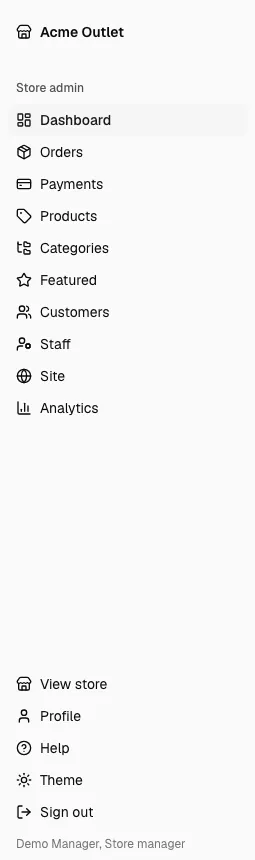
Section titled “The menu”The menu on the left lists only what your role can use:
Dashboard, Orders, Payments, Products, Categories, Featured, Customers, Staff, Settings, Site and Analytics (for roles that can open reports; see Analytics). View store opens the store in the same window, Help opens this guide in a new tab (it appears when your store’s operator has set the manual up), Theme chooses how the admin looks, and Sign out ends your session.
Theme has three options: System (the default: the admin is light or dark like your device), Light and Dark. The choice is kept on the device you use. It only changes the admin: the store your customers see stays as you designed it.
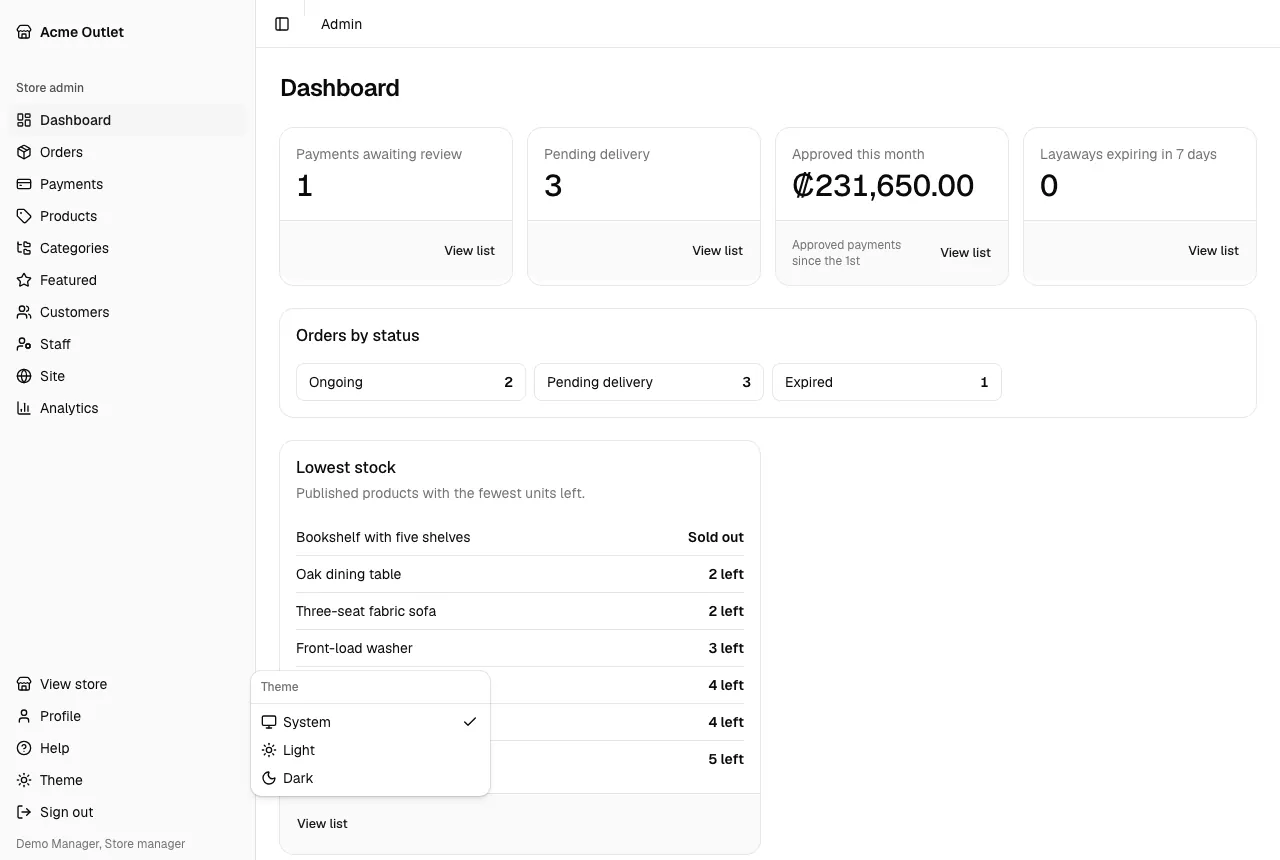
The Toggle sidebar button at the top left shows or hides the menu.